


Flowster is a powerful tool designed to help businesses streamline their processes and automate recurring tasks. Whether you’re overseeing a small team or managing a large operation, workflows guarantee efficient task completion and prevent any oversights.
In this guide, you’ll learn exactly how to create workflows in Flowster to optimize your business operations. We’ll cover everything from setting up custom workflows to assigning tasks and managing team collaboration. By the end, you’ll be able to build workflows that enhance productivity and keep your processes running smoothly.
If you prefer, you can also watch this beginner’s guide to Flowster video:
Article Outline
Understanding Flowster Workflows
Workflows are the backbone of efficient business operations. In Flowster, they help teams automate repetitive tasks, assign work, and track progress seamlessly. Before you start building workflows, it’s important to understand how they function and how they can improve your productivity.
How Workflows Function in Flowster
Workflows in Flowster are structured sequences of tasks designed to guide a process from start to finish. They ensure that every step is followed correctly and nothing gets overlooked. Each workflow can be customized to fit the specific needs of your team or project.
The Benefits of Using Workflows
Implementing workflows saves time, reduces errors, and enhances team collaboration. With Flowster workflow automation, businesses can ensure that repetitive tasks are handled efficiently. By defining clear steps, workflows help teams stay organized and maintain consistency in their processes.
Templates vs. Workflows
A template serves as the master blueprint for a process, while a workflow is an active instance of that template. Essentially, a template establishes the framework, while workflows utilize these templates to execute specific tasks. Understanding this distinction is key to efficiently managing your processes in Flowster.
Mastering how to create workflows in Flowster will allow you to optimize your operations, delegate tasks effectively, and enhance productivity. Now that you understand the basics, let’s dive into how to build your own custom workflows from scratch.
Capture Your Processes in Minutes!
Creating a Custom Workflow from Scratch
Creating a custom workflow in Flowster allows you to tailor processes to your specific business needs. Whether you need to automate recurring tasks or streamline team collaboration, building a workflow from scratch gives you complete control over its structure and execution.
Step-by-Step Instructions for Creating a New Workflow
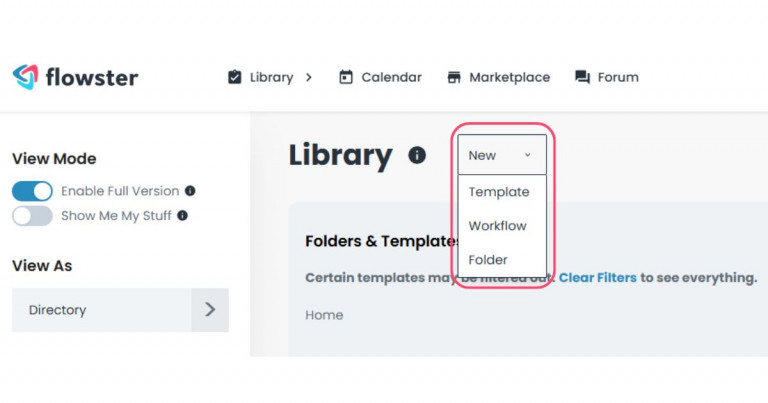
To get started, log into Flowster and navigate to the workflow creation section. Click on “New Workflow” and choose “Create a workflow.” This option lets you define each step and ensure the process aligns perfectly with your business operations.
Steps to Create a Workflow in Flowster:
- Log in to your Flowster account.
- Click on “New” then “Workflow.”
- Choose “Create a workflow.”
Naming and Structuring Your Workflow
A well-structured workflow starts with a clear name. Choose a name that reflects the process and makes it easy for team members to identify. Next, outline the key steps in the correct sequence, ensuring a logical flow that guides users from start to finish.
Adding and Organizing Tasks Effectively
Each workflow step should contain specific instructions, ensuring that assigned team members know exactly what to do. Use Flowster’s features like checklists, file uploads, and due dates to keep tasks organized. Additionally, consider incorporating Flowster integrations to streamline data sharing and communication between different tools your team already uses.
By following these steps, you’ll have a customized workflow that enhances productivity and keeps your team aligned. Now that you’ve created the foundation, the next step is assigning tasks to ensure smooth execution.
Assigning and Managing Workflow Tasks
Once your workflow is set up, the next step is to ensure tasks are assigned effectively. Proper task management lets your team know what to do, when, and who’s responsible.
How to Assign Tasks to Team Members
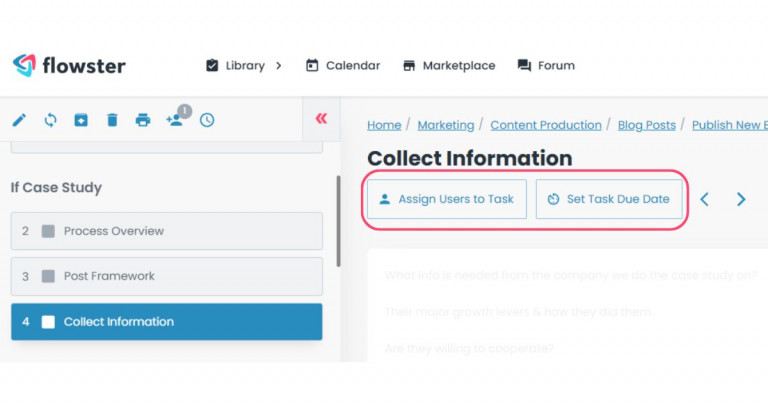
Assigning tasks in Flowster is straightforward. Simply open your workflow, select a task, and assign it to the appropriate team member. You can also delegate specific steps within a workflow to multiple people, ensuring responsibilities are clear and workload is balanced.
Steps to Assign a Task in Flowster:
- Open your workflow.
- Select the task you want to assign.
- Choose the appropriate team member.
- Save the assignment to confirm the changes.
Setting Deadlines and Ensuring Accountability
Deadlines keep workflows on track. When assigning tasks, set due dates to ensure timely completion. You can also monitor progress within Flowster’s dashboard, making it easy to identify bottlenecks and take action before deadlines are missed. For teams that also need to unify tasks, calendars, meetings, messages, and follow-ups across multiple apps, an all-in-one productivity tool like Akiflow can centralize daily execution, reduce context switching, and help keep work moving efficiently.
Using Notifications to Keep Work on Track
Flowster sends automatic notifications to assigned users, reminding them of upcoming or overdue tasks. Team members can receive alerts via email or directly within the app, helping them stay updated and accountable. This feature ensures that tasks are completed on time and prevents important steps from being overlooked.
By properly assigning tasks, setting deadlines, and leveraging Flowster’s notification system, you can keep your workflows running smoothly and your team aligned. The next step is enhancing collaboration within the workflow.
Collaborating Within a Workflow
Effective collaboration within a workflow ensures that teams stay aligned and work efficiently. Flowster provides several features to enhance communication, streamline processes, and keep tasks organized.
Using Comments and @Mentions for Communication
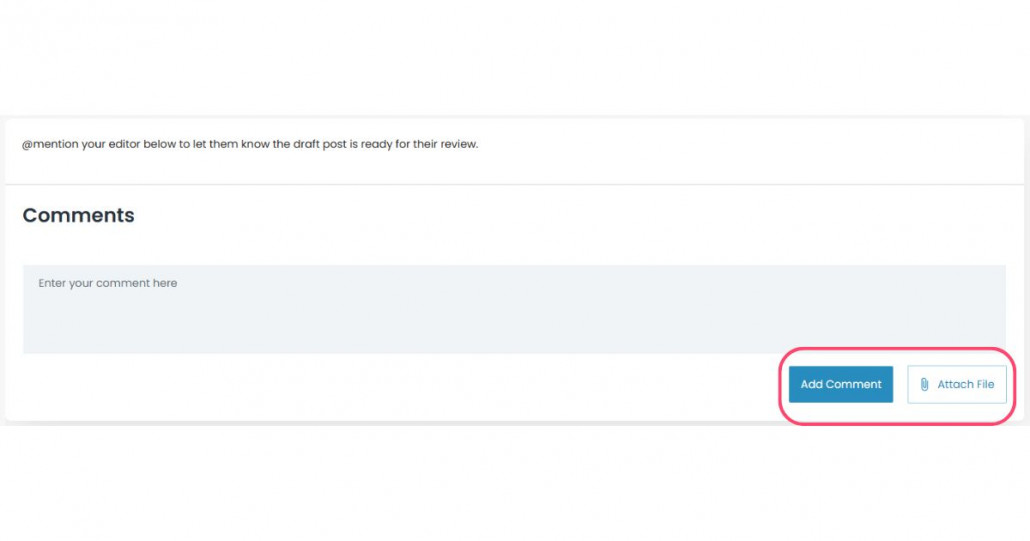
Flowster allows users to leave comments on tasks, making it easy to provide updates, ask questions, or provide feedback. By using @mentions, team members can tag specific colleagues, ensuring that important messages reach the right people promptly.
Adding Attachments and Additional Resources
To improve workflow efficiency, Flowster enables users to attach files, images, and documents to tasks. This feature ensures that all relevant information is stored in one place, reducing the need for external communication and preventing information loss.
Ensuring Seamless Team Collaboration
By integrating Flowster’s features, teams can work together effortlessly. Users receive notifications when they are tagged, assigned a task, or when a workflow is updated. This keeps everyone informed and reduces the risk of missed steps in the process.
By leveraging these collaboration tools, teams can enhance efficiency, maintain clear communication, and ensure that workflows progress smoothly. The next step is keeping workflows up to date as business needs evolve.
Updating and Maintaining Workflows
Workflows are not static—they need to evolve with your business. Flowster makes it easy to update and maintain workflows without disrupting ongoing work.
Making Adjustments as Business Needs Evolve
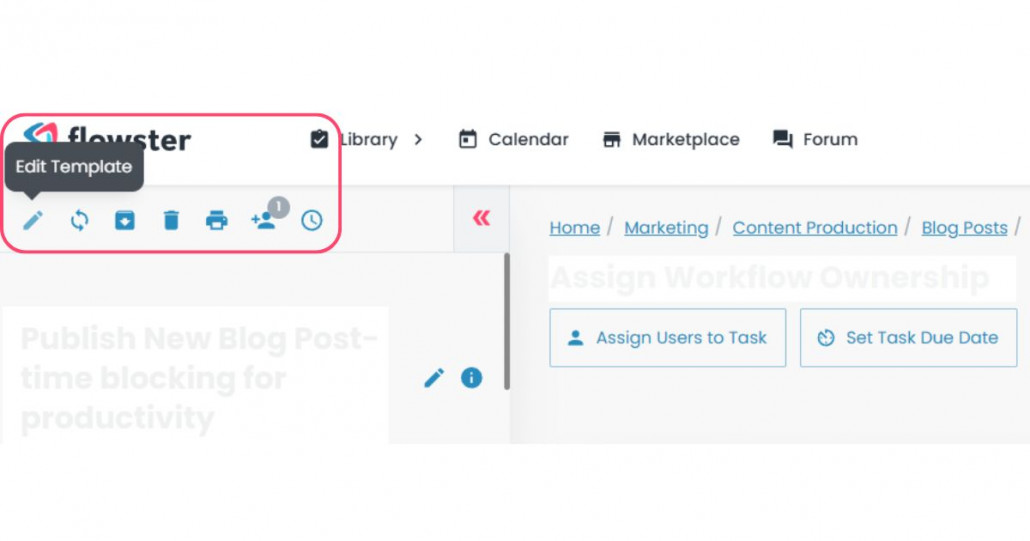
As your processes change, you may need to add or remove steps in a workflow. Flowster allows you to edit workflows in real time, ensuring your processes stay relevant and efficient.
Updating a Workflow Without Disrupting Ongoing Tasks
Flowster ensures that updates do not interfere with active workflows. When you introduce changes to a template, Flowster notifies you of existing workflows that can be updated. This feature helps teams stay aligned with the latest process improvements.
Keeping All Team Members on the Latest Version
To prevent confusion, Flowster alerts users when an updated workflow is available. Assigned team members receive notifications, prompting them to apply the latest version to their tasks. This process keeps workflows consistent and ensures everyone is following the most up-to-date procedures.
Regularly maintaining and updating workflows helps businesses improve efficiency, minimize errors, and stay adaptable. Next, let’s explore how to archive and retrieve completed workflows.
Archiving and Retrieving Completed Workflows
Keeping your workspace organized requires archiving workflows that are no longer active. Flowster makes it easy to archive, retrieve, and unarchive workflows when needed.
How to Archive a Completed Workflow
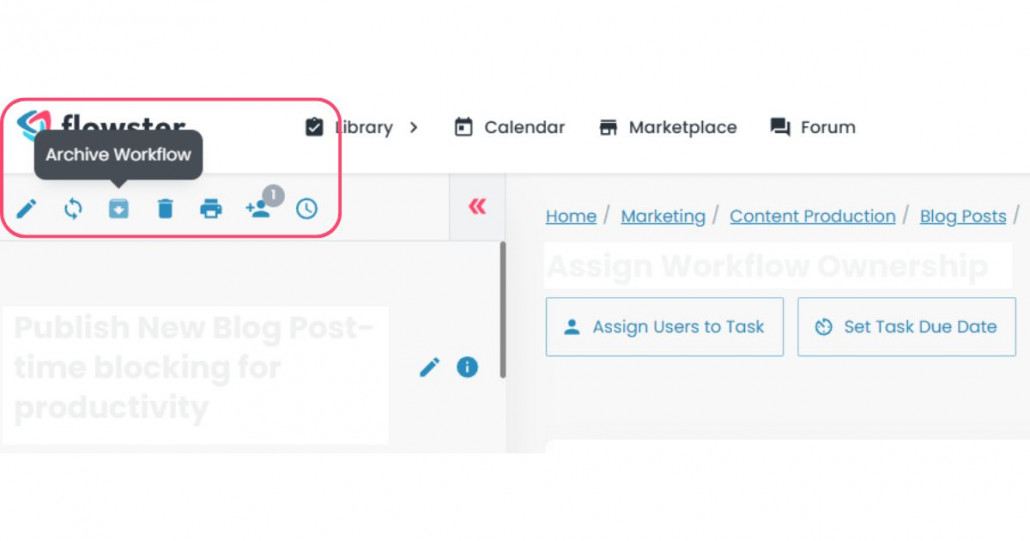
Once a workflow is completed, it can be archived to keep the workspace clutter-free. Simply navigate to the workflow, go to the options menu, and select “Archive Workflow.” This moves it to storage while keeping the data intact.
Steps to Archive a Workflow in Flowster:
- Navigate to the completed workflow.
- Go to the options menu.
- Select “Archive Workflow.”
- Confirm to store it while keeping the data intact.
Searching and Retrieving Archived Workflows
Archived workflows are not deleted—they remain accessible for reference or reuse. Use the search bar in Flowster to find archived workflows by name or keyword. This method ensures that past processes remain accessible whenever necessary.
Unarchiving Workflows for Reuse
If a workflow needs to be reinstated, unarchiving is simple. Select the archived workflow, click “Unarchive,” and it will be restored to active status. This feature is especially useful for repeating processes that need to be relaunched periodically.
By effectively managing archived workflows, businesses can maintain an organized workspace while ensuring that valuable processes remain accessible when needed. Next, let’s explore managing users and permissions in Flowster.
Managing Users and Permissions in Flowster
Proper user management in Flowster ensures that workflows run smoothly and securely. Assigning the right permissions helps keep processes organized and ensures each team member has appropriate access.
Understanding Different User Roles
Flowster offers three main user roles: Administrator, Member, and Guest. Administrators have full access, including managing users and workflows. Members can create and edit workflows but may have restricted admin controls. Guests, typically contractors or clients, can only access workflows assigned to them.
Adding and Removing Users
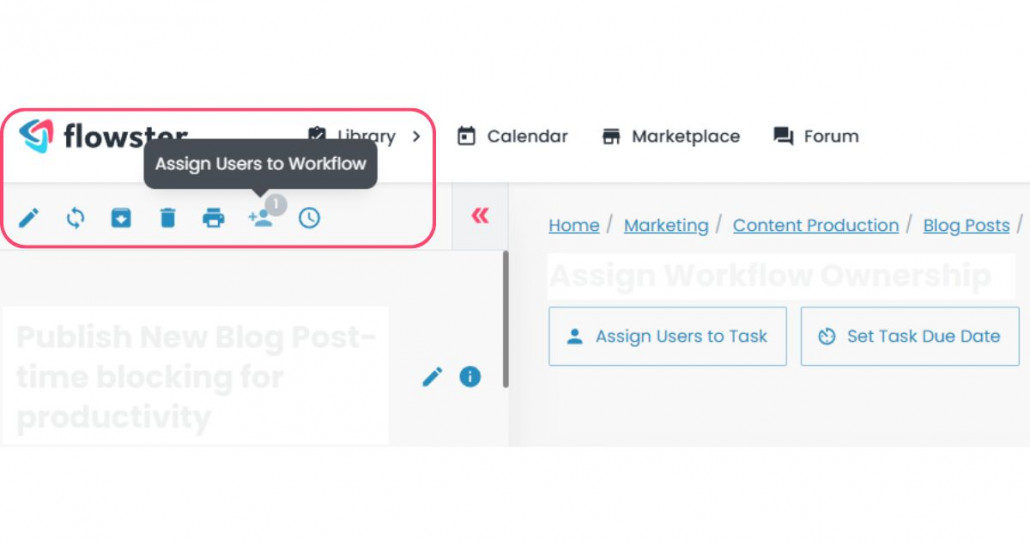
To add a new user, navigate to the options menu, select “Assign Users to Workflow,” and invite team members via email. Removing users is just as simple—select the user and deactivate or revoke their access to prevent unauthorized workflow edits.
Steps to Add or Remove a User in Flowster:
- Go to “Account Settings.”
- Click on “Assign Users to Workflow.”
- To add a user, enter their email and send an invite.
- To remove a user, select their name and deactivate or delete their access.
Assigning Guest Users to Workflows or Tasks
Guest users can be added to specific tasks within a workflow. This feature is helpful when working with external collaborators who need limited access. By assigning guests only to relevant tasks, businesses can maintain workflow security while ensuring seamless collaboration.
By managing users effectively, businesses can control access, streamline team collaboration, and maintain security in their workflows. Next, let’s explore how using templates can simplify workflow setup.
Using Templates for an Easier Workflow Setup
If you want to save time and simplify workflow creation, Flowster’s template marketplace is a fantastic place to start. Instead of building workflows from scratch, you can use pre-built templates designed for various business processes.
Introduction to Flowster’s Template Marketplace
Flowster provides a wide selection of templates that cover different industries and use cases. These templates serve as ready-to-use workflows that can be instantly implemented into your operations.
Finding and Using Pre-Built Templates
To browse available templates, go to the Flowster marketplace and search for relevant templates using keywords or categories. Once you find a suitable template, simply add it to your workflow library and customize it to fit your specific needs.
Customizing Templates to Fit Your Business Needs
Although templates provide a solid foundation, they can be edited to align with your specific processes. You can modify steps, add custom instructions, and integrate Flowster’s features to enhance functionality.
Using templates is an excellent option for businesses looking to streamline workflow creation while maintaining flexibility. Now, let’s wrap up everything we’ve covered in the conclusion.
Flowster's AI-Driven Automation
Conclusion
Creating custom workflows in Flowster empowers businesses to streamline processes, improve efficiency, and enhance team collaboration. By following this guide, you now understand how to create workflows in Flowster, assign tasks effectively, and ensure seamless communication within your team.
Optimizing and maintaining workflows over time helps keep processes relevant and efficient. Whether you’re updating existing workflows or creating new ones, Flowster makes it easy to refine your operations.
If you prefer a quicker solution, Flowster also offers pre-built templates that simplify the setup process. These templates provide a solid starting point and can be customized to fit your unique business needs.
Now it’s time to take action—start building your workflows and experience the benefits of Flowster workflow automation today!