


Did a hard drive failure suddenly interrupt your client workflows and put active projects at risk? When client workflows become inaccessible, even briefly, the consequences escalate fast. What looks like a technical issue can quickly turn into an operational and financial problem. We will explain what steps to take, how to assess the damage, and which hard disk recovery options make the most sense for your situation.
What Lost Client Workflows Really Cost
In business operations, a failed hard drive affects much more than a few deleted files. Suddenly, the organized ecosystem of your business disappears: live projects, billing data, agreements, and conversations. That disruption can derail timelines, strain long-built relationships, and expose your company to contractual disputes or compliance risks.
Unfortunately, hard drive failures are not that rare. According to data published by Backblaze, about 1.7% of hard drives fail each year on average.
That translates into millions of incidents annually across businesses worldwide. For companies that rely on local storage or single-drive systems, this risk remains constant. The financial consequences can escalate quickly, even for small businesses.
The first impact is only part of the problem; we also see wider business consequences, including:
- A lost customer
- Internal productivity drops while teams attempt to reconstruct lost work
- Emergency IT expenses and urgent recovery service fees
- Project restarts that consume additional time and labor
- Loss of competitive advantage when proprietary data or research disappears
- Increased cybersecurity exposure if the failure is linked to malware or ransomware
This type of cascade is not theoretical. Even technology companies with experienced engineering teams have faced similar scenarios when storage systems failed or recovery processes broke down. In 2017, GitLab experienced a major production outage after a database was accidentally deleted and backup systems failed to restore it properly.
The result was nearly 18 hours of downtime, partial data loss, and global disruption for thousands of users. The company published a transparent post-mortem explaining how gaps in backup validation and recovery procedures amplified the damage. The technical issue quickly turned into a business crisis.
How to Recover Data from Hard Drive
We understand that even with reliable backups, data loss can still happen. Backup devices fail, cloud sync can overwrite healthy files, and snapshots may not contain the latest changes. That is why it is important to know how to respond when hard drive recovery becomes necessary.
The first rule is simple: stop using the affected drive immediately. Any further activity can overwrite recoverable sectors and permanently destroy data that still physically exists on the disk.
Next comes diagnosis:
- If the drive shows in Disk Management with its correct capacity, but shows missing files, appears as RAW, or reports formatting errors, the issue is logical and can often be resolved with hard drive repair software.
- If the drive makes clicking or grinding noises, fails to spin properly, or is completely undetected, the problem may be mechanical or firmware-related and should be handled by a recovery lab.
Since most data loss incidents we encounter fall into this logical failure category, we start with software-based recovery methods:
Method 1: Disk Drill
When a hard drive is still detected by your system, professional recovery software is usually the safest first step. Among the available options, Disk Drill is widely recognized as a reliable and business-friendly tool for hard drive data recovery on Windows.
It supports all major file systems, including NTFS, FAT32, exFAT, and even EXT partitions. The software is designed to handle logical failures such as accidental deletion, formatted drives, RAW partitions, and corrupted file systems.
Here is how to recover data from a hard drive using Disk Drill:
- Visit the official Disk Drill website and download the installer. Install the software on a different drive from the one you plan to recover. This is critical to avoid overwriting lost files.
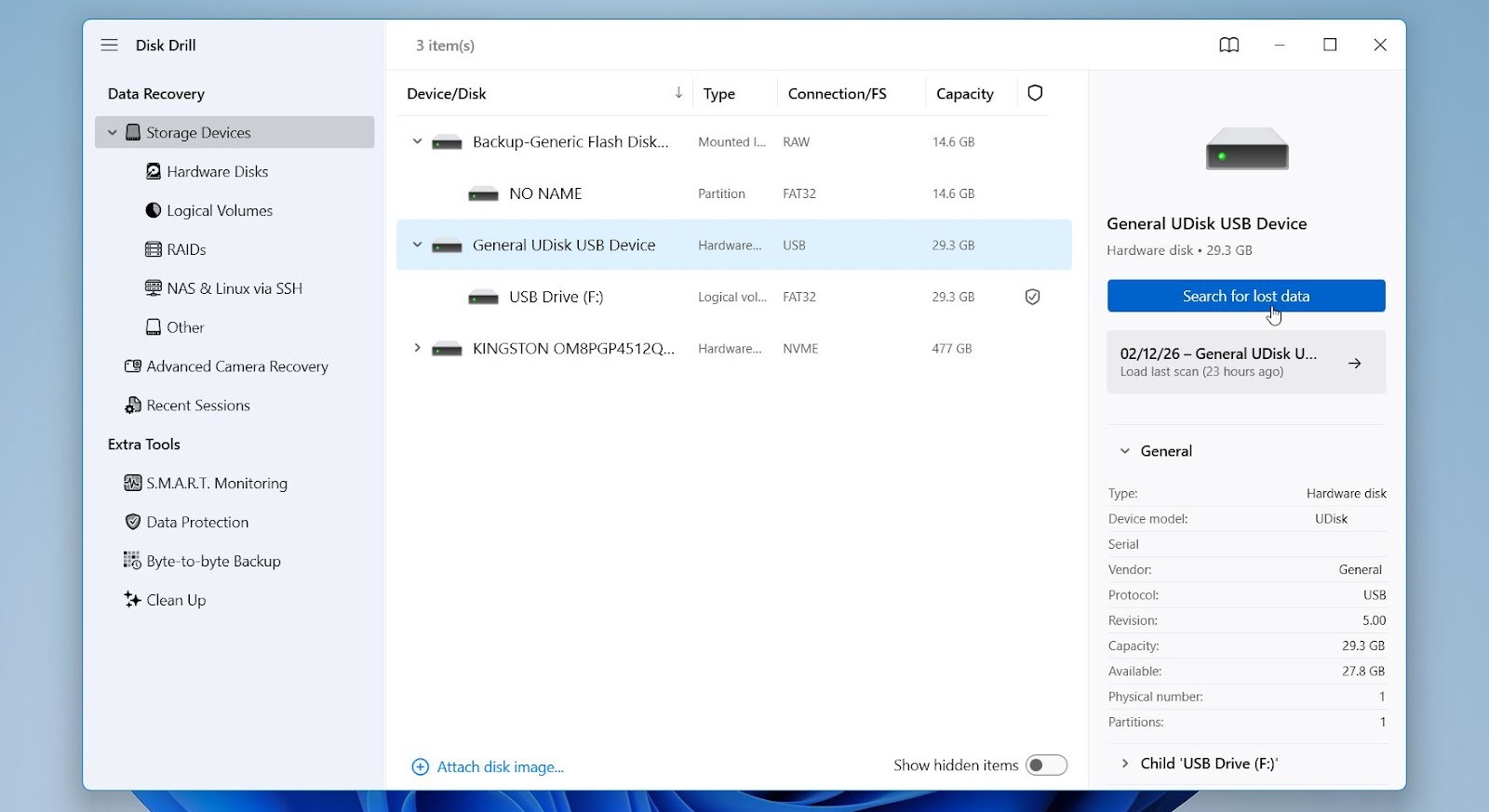
- Open Disk Drill and confirm that the affected hard drive appears in the device list. If the drive shows as RAW or unallocated, that is normal in logical failure scenarios.
- Select the drive and click Search for lost data.
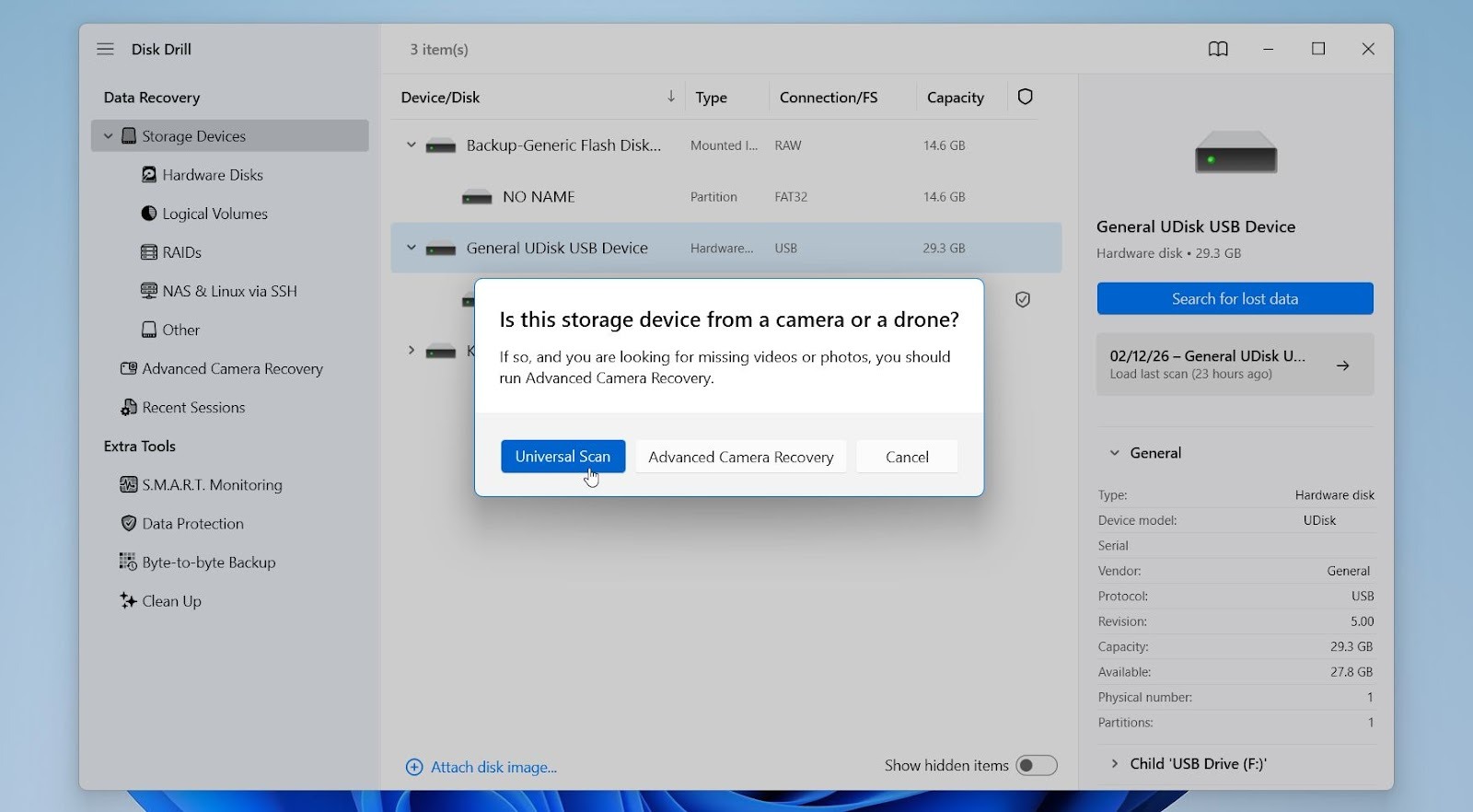
- If prompted, choose Universal Scan. This mode combines quick and deep scanning methods and is recommended for most recovery cases. Allow the scan to complete fully for the most thorough results.
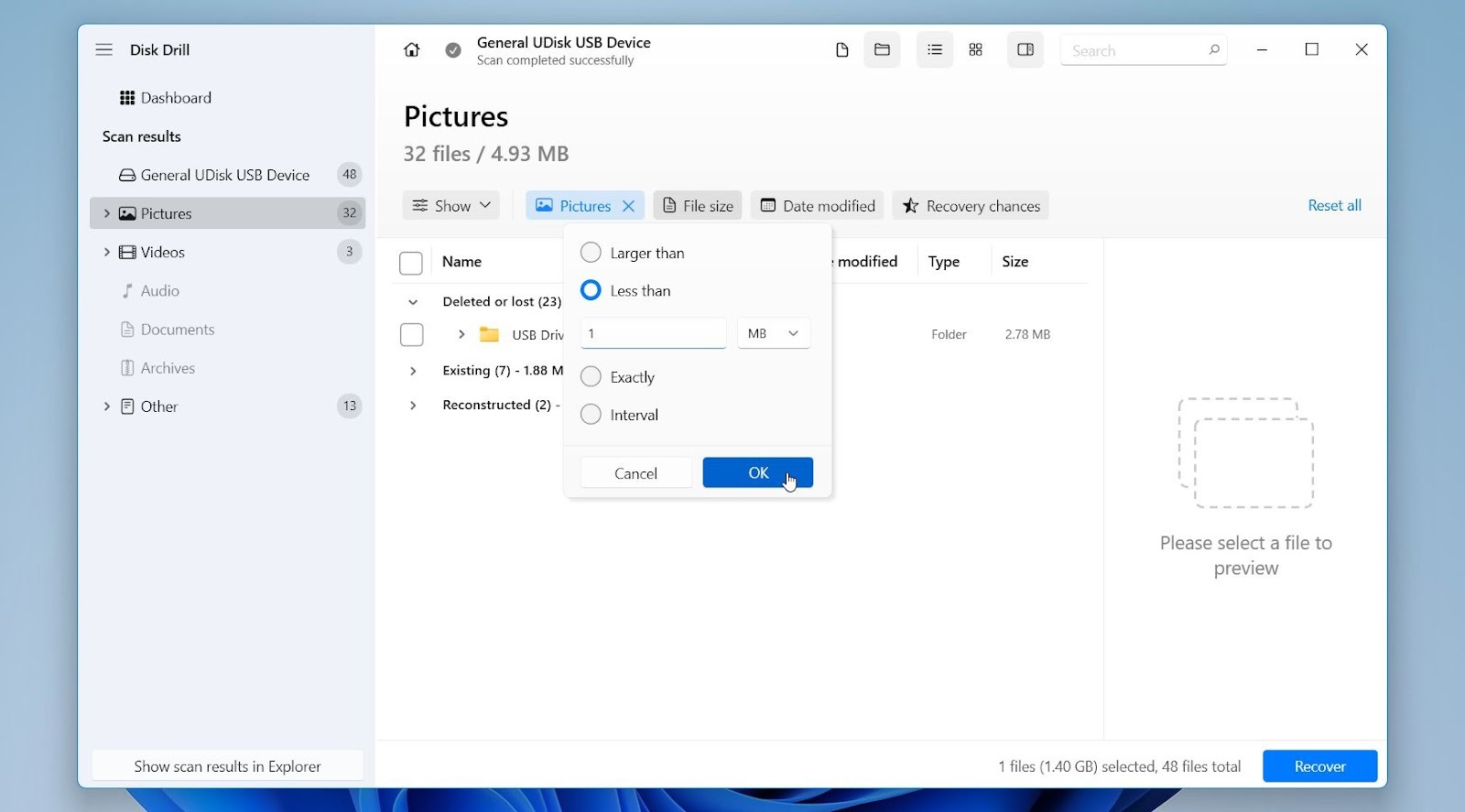
- After the scan, use filters to narrow the results by file type, folder location, or search keywords. This helps you quickly locate important project files or business documents.
- Preview the files you intend to recover to confirm they open correctly. A successful preview strongly indicates the file can be restored intact.
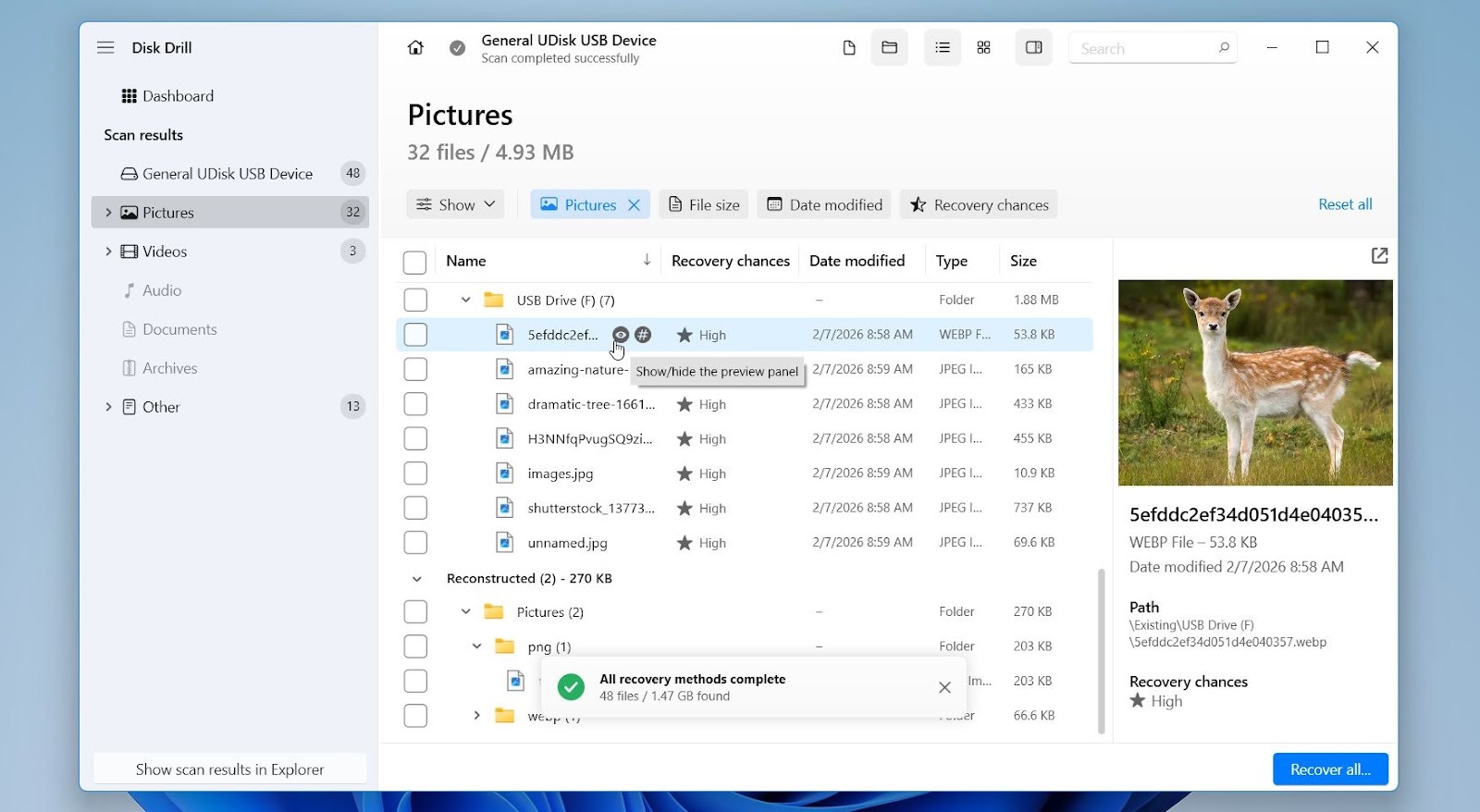
- Select the checkboxes next to the files or folders you want to restore and click Recover.
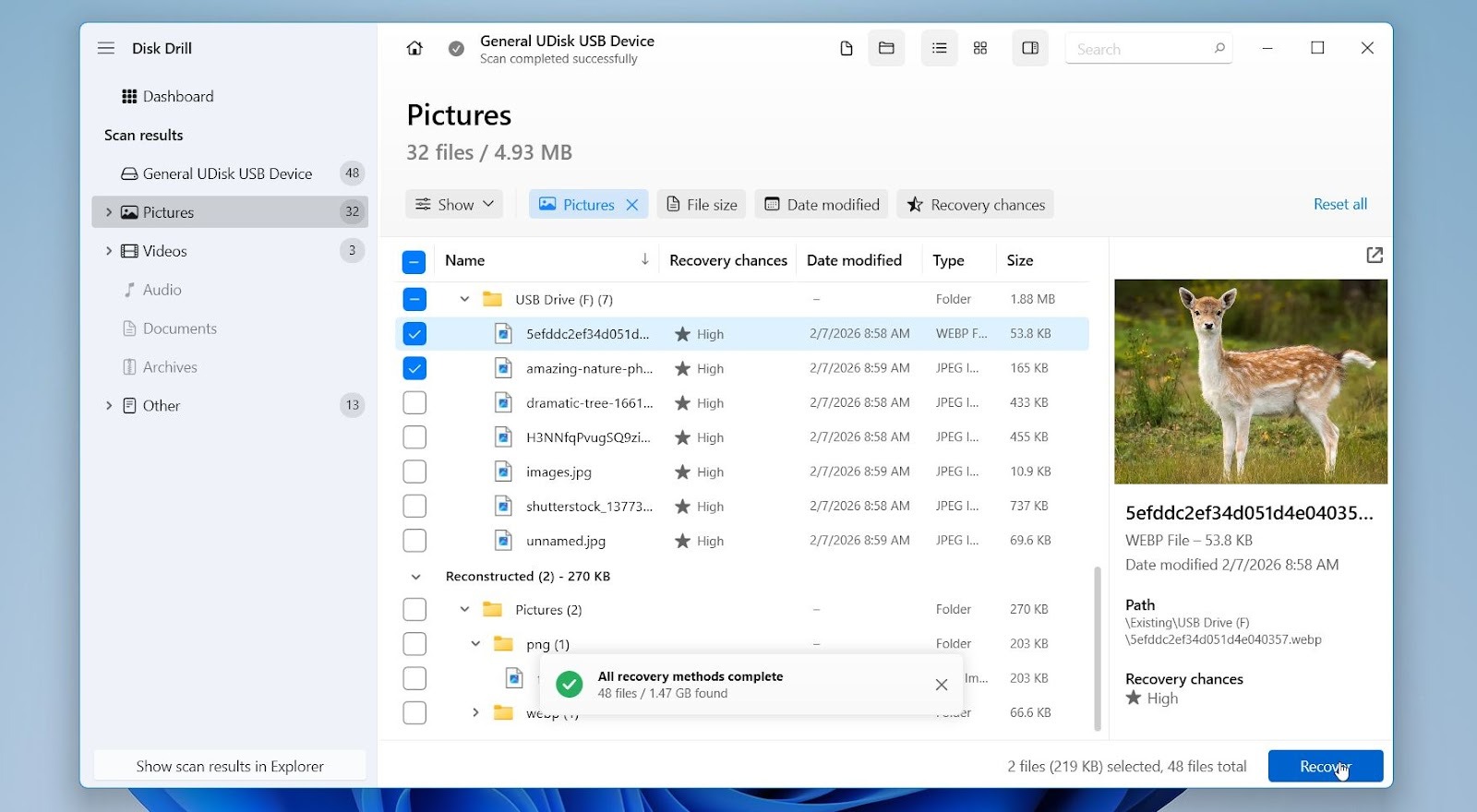
- Save the recovered data to a separate disk or external drive. Never restore files to the same drive you are scanning, as that can overwrite remaining recoverable sectors and cause additional corruption.
We recommend Disk Drill for several reasons. It combines powerful scanning algorithms with an interface that does not require advanced technical knowledge.
Disk Drill also allows you to create a byte-to-byte disk image before running recovery, which protects unstable drives from further damage. If you decide to upgrade, you can purchase one license for both Windows and macOS, which is a great option for many people. On Windows, Disk Drill allows recovery of up to 100 MB for free, which in our experience is enough for many common cases such as recently deleted documents or small project files.
Method 2: R-Studio
To provide a broader perspective, we also want to mention another professional recovery tool that is widely recommended and used in more technical environments. R-Studio is a professional data recovery suite designed for IT administrators, engineers, and advanced users.
It supports a wide range of file systems and storage configurations like NTFS, ReFS, FAT12/16/32, exFAT, EXT2/3/4, HFS+, APFS, and UFS. In addition, it works with RAID arrays, NAS devices, and network storage, which makes it suitable for both standard desktops and more complex IT environments. Its main strength lies in detailed control over scanning parameters, disk imaging, and manual partition analysis.
Here is how to use R-Studio:
- Install R-Studio on a separate healthy drive, not on the affected disk.
- Open the program and locate the damaged hard drive in the device list.
- If the drive is unstable, create a disk image before scanning.
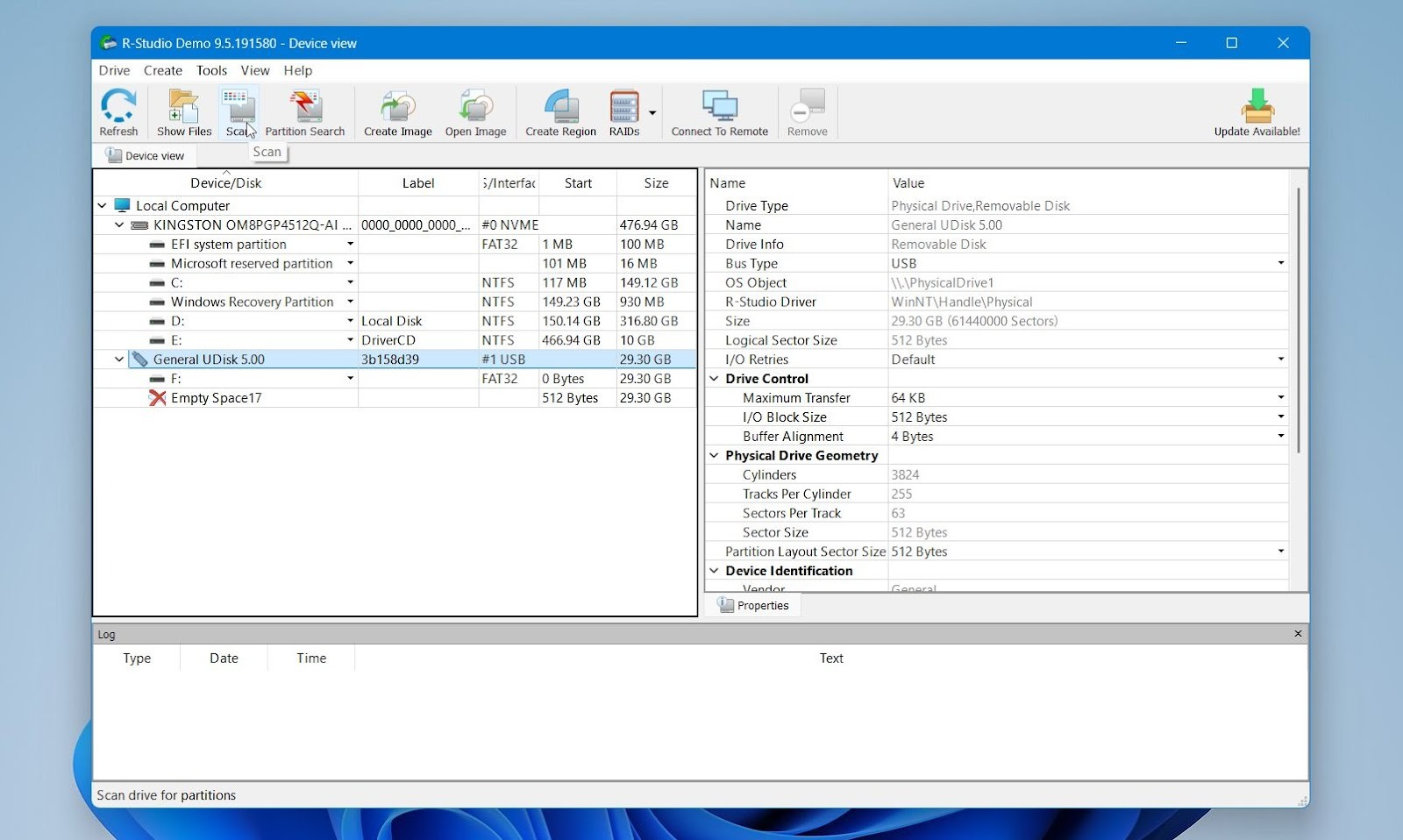
- Select the drive and click Scan, adjusting file system settings if needed.
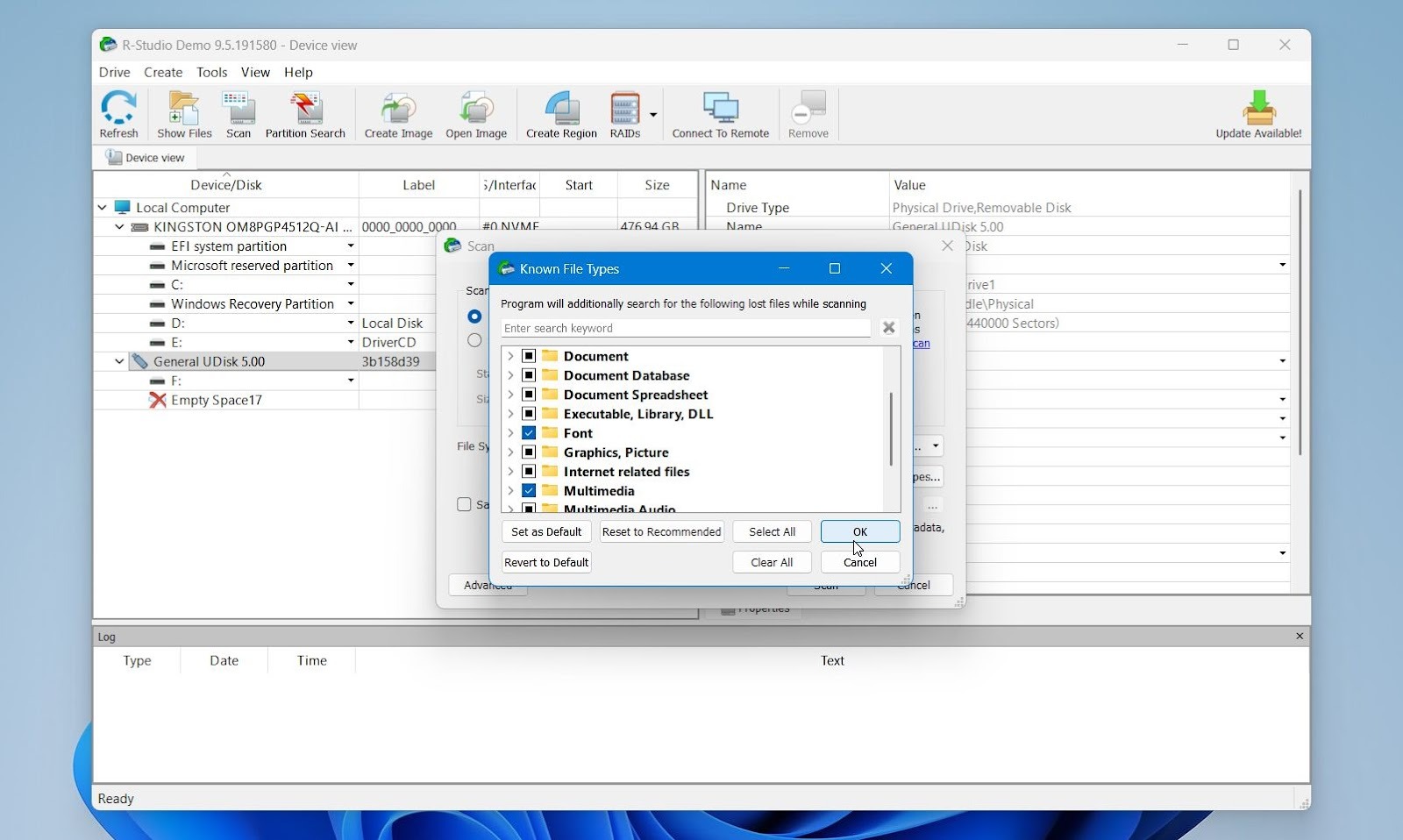
- In the window that appears, you can customize your scan. If necessary, select the file types you want to recover and click OK.
- After the scan finishes, review detected partitions and recovered file trees. Preview and select the files you want to restore.
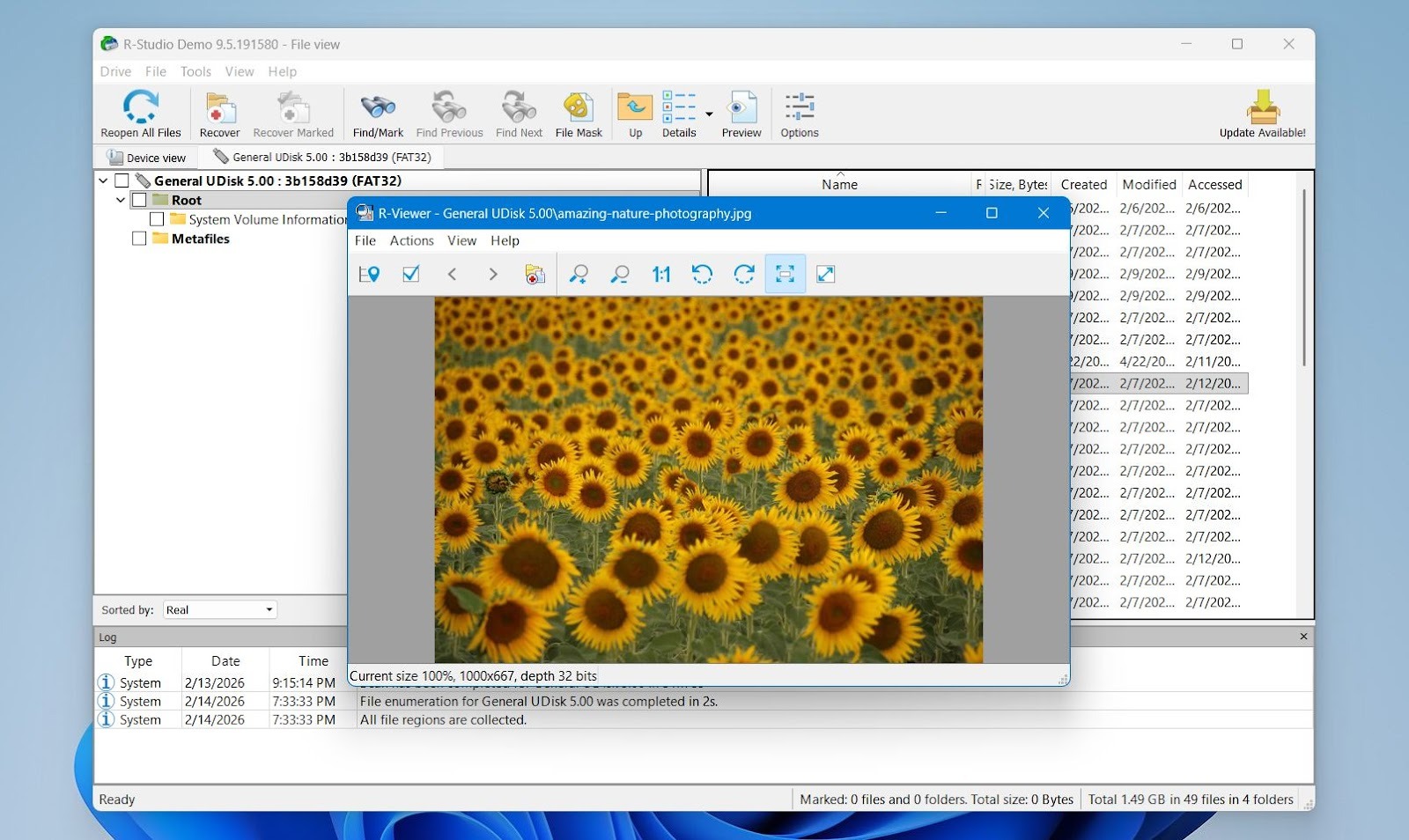
- Click Recover and save the data to a different storage device.
R-Studio is more technical than Disk Drill. The interface is less guided, and recovery often requires manual configuration. For most standard logical failures such as deleted files or formatted drives, Disk Drill is easier to use and faster to operate. R-Studio is better suited for complex cases where detailed disk analysis is required. It also offers a free demo version, which allows you to scan the drive, preview recoverable files, and restore files up to 1024 KB in size.
Method 3: Professional Data Recovery Services
As we already mentioned earlier, there are situations where software-based recovery will not help. While it works well for logical failures, it has clear limits. When a hard drive shows signs of physical damage, firmware corruption, or complete detection failure, professional data recovery services become the safest option.
This method is appropriate if the drive:
- Makes clicking, grinding, or beeping noises
- Fails to spin up properly
- Is not detected in BIOS or Disk Management
- Was damaged by impact, water, fire, or electrical surge
Most reputable services operate under a “no data, no fee” policy, meaning you only pay if recovery is successful. Costs vary depending on complexity, required parts, and labor time, but physical recovery is significantly more expensive than software-based methods. Fortunately, professional recovery is not often required, and most cases can be solved with a data recovery tool.
Best Tips to Prevent Future Data Loss
We always say prevention is better than recovery, especially for businesses where downtime directly affects revenue and client trust. No system is immune to failure, but consistent data management helps avoid most major losses.
Here are steps that help reduce the risk of facing another hard drive recovery situation.
- The most important rule is to follow the 3-2-1 backup strategy: keep at least three copies of your data, store them on two different types of media, and maintain one copy offsite or in secure cloud storage. This structure protects against hardware failure, theft, ransomware, and accidental deletion.
- Automated backups are equally important. Manual copying often fails because it depends on routine and memory. Set up daily or real-time backups with reliable software or cloud solutions so data protection does not depend on human action.
- Drive health monitoring also plays a preventive role. Tools that check SMART status can warn about potential disk failure before a complete breakdown occurs. Early detection allows controlled migration instead of emergency recovery.
- In business environments, separate active work from archived data. Avoid relying on a single workstation or internal disk as the only storage location for client workflows. Even temporary project folders should sync or back up automatically.
- Finally, test your backups. A backup that cannot be restored is not a backup. Periodic verification ensures that recovery procedures work as expected and that files remain accessible.
Prevention does not eliminate risk, but it transforms data loss from a crisis into a manageable incident.
Closing Thoughts
Lost client workflows can disrupt operations quickly, but most cases are recoverable with the right approach. The most important step is fast action: stop using the drive, diagnose the issue, and choose the correct recovery method. Software tools handle most logical failures, and professional labs remain an option for hardware damage. At the same time, strong backup practices reduce the risk of facing the same situation again.
Hard drive failures are inevitable. Preparation determines whether they become a setback or a serious business problem.