
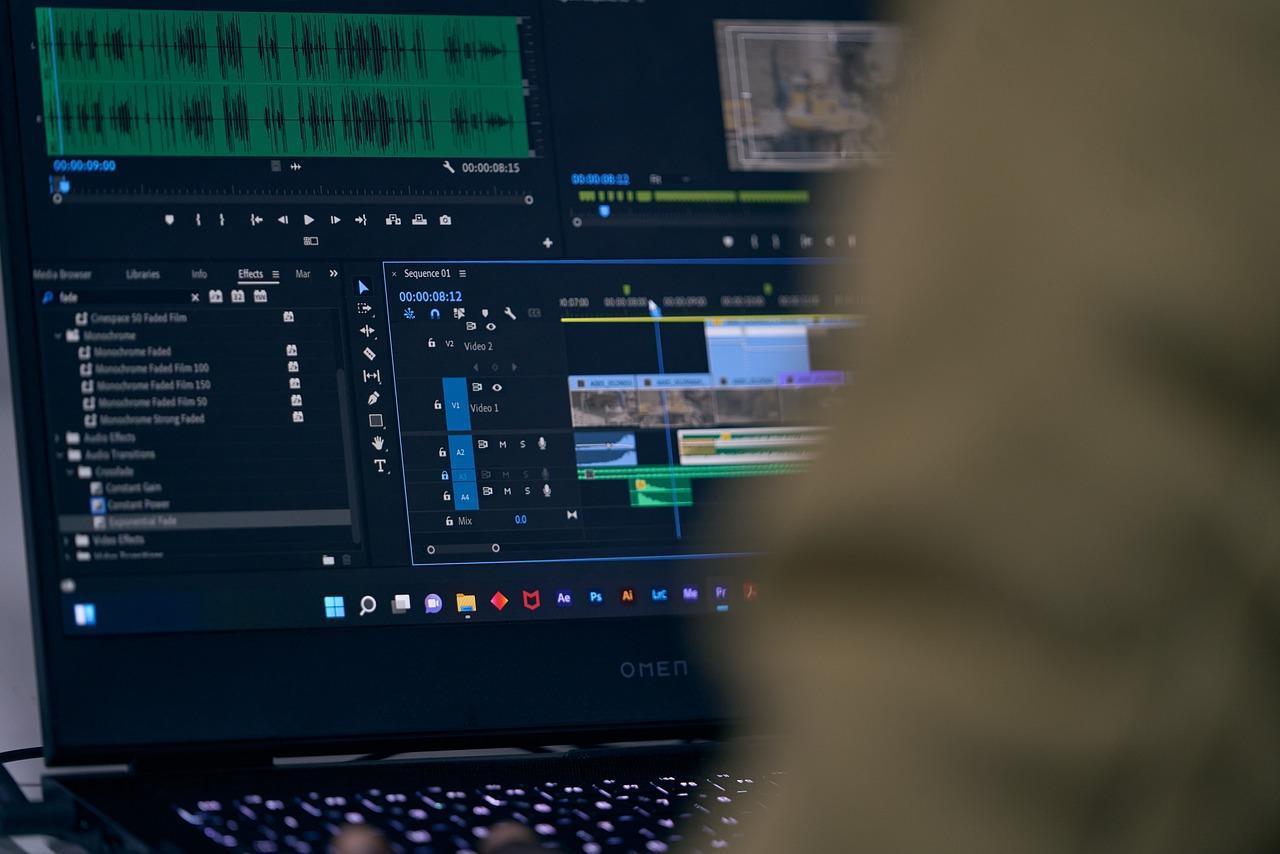

Whether you’re a seasoned professional juggling multiple client projects or a content creator striving to maintain a consistent upload schedule, the pressure to deliver high-quality video quickly is immense. It might seem like speed and quality are opposing forces, forcing you to choose one over the other. However, the reality is that optimizing your workflow doesn’t mean cutting corners; it means working smarter. Small tweaks, strategic habits, and clever hacks can significantly boost your productivity, freeing up valuable time and mental energy without diminishing the final product’s impact.
This article dives into actionable tips and strategies designed to accelerate your video production workflow.
Why Workflow Efficiency is Key
Efficiency in video production, editing, or learning how to convert to DVD isn’t just about speed for speed’s sake. It’s about creating a smoother, more sustainable, and ultimately more creative process. When your workflow is streamlined, several key benefits emerge:
- Meeting Deadlines Consistently
- Reducing Stress and Burnout
- Enhancing Creativity
- Increased Capacity
Even highly experienced editors can fall into inefficient habits or overlook optimization opportunities. Regularly evaluating and refining your workflow is crucial for staying competitive and maintaining a high standard of work, regardless of your experience level.
Essential Video Editing Software Hacks (Universal Tips)
While specific features vary, certain workflow principles and hacks apply across most professional and prosumer video editing software (NLEs – Non-Linear Editors). Implementing these can yield significant time savings if you are trying to speed up video production tasks.
- Master Keyboard Shortcuts
- Leverage Templates and Presets
- Organize Your Media Meticulously
- Pre-Cut Footage Before Importing (or upon Import)
- Automate Repetitive Tasks
Software-Specific Tips for Popular Tools
While the universal hacks are crucial, leveraging features unique to your chosen NLE can provide an extra edge:
Adobe Premiere Pro:
- Lumetri Color Panel: Utilize its built-in presets for quick color correction or creative looks. Save your own custom grades as presets.
- Essential Graphics Workspace: Create, save, and reuse motion graphics templates (.mogrt) for titles, lower thirds, and other graphics, maintaining brand consistency and saving time.
- Pancake Timeline Editing: Stack timelines vertically – one with selects/raw footage above your main edit timeline – to quickly drag-and-drop clips.
Final Cut Pro:
- Magnetic Timeline: Understand and leverage its unique timeline behavior, which automatically ripples edits and keeps clips connected, minimizing gaps and sync issues.
- Compound Clips: Group multiple video and audio clips into a single, manageable unit, simplifying complex sequences or applying effects uniformly.
- Keyword Collections & Smart Collections: Use robust tagging and metadata features to automatically organize footage based on criteria you define.
Movavi Video Editor:
- Drag-and-Drop Interface: Designed for ease of use, its intuitive interface allows for quick assembly of clips, effects, and titles.
- Built-in Effects Library: Leverage the extensive library of pre-made transitions, filters, titles, and stickers for rapid creative additions, especially suited for social media content.
DaVinci Resolve:
- Smart Bins: Similar to FCP’s Smart Collections, automatically organize media based on metadata or keywords across the entire project.
- Color Grading Shortcuts & Nodes: Master keyboard shortcuts specifically for the Color page. Utilize shared nodes to apply the same grade adjustment across multiple clips efficiently.
- Cut Page: Designed for speed, the Cut page offers streamlined tools like the source tape view and dual timelines for rapid assembly and trimming.
Hardware and System Optimization
Your editing software is only as fast as the hardware it runs on. Optimizing your system can significantly reduce lag, shorten render times, and improve overall responsiveness.
Video editing is RAM-intensive. More RAM allows the software to handle larger files and more complex sequences simultaneously without constantly reading/writing to slower storage. Aim for at least 16GB for HD work, 32GB for 4K, and 64GB or more for 6K/8K or complex motion graphics.
Using an SSD instead of a traditional Hard Disk Drive (HDD) for your operating system, editing software, and active project files dramatically speeds up loading times, scrubbing, and rendering previews. NVMe SSDs offer even faster performance than SATA SSDs. Consider using HDDs for long-term storage/archiving only.
A powerful GPU accelerates rendering, playback of effects-heavy sequences, and exporting, especially with modern NLEs that leverage GPU acceleration (like Premiere Pro’s Mercury Playback Engine or Resolve’s CUDA/Metal support). Ensure your GPU drivers are up to date and configure your NLE to utilize GPU acceleration fully.
Keep your operating system, editing software, and graphics drivers updated. Updates often include performance improvements, bug fixes, and better compatibility with new hardware or codecs.
Video editing generates large cache files (render previews, waveform data, etc.). Regularly clear your NLE’s cache and delete old render files to free up disk space and sometimes resolve performance issues. Also, archive or remove old projects and unused media from your primary editing drives.
Common Mistakes That Slow You Down
Beyond not implementing the tips above, certain common pitfalls can sabotage your workflow efficiency:
- Disorganization: Starting an edit without a clear file structure or naming convention.
- Skipping Proxies: Trying to edit high-resolution footage natively on an underpowered system.
- Not Saving/Backing Up: Losing hours of work due to a crash because auto-save wasn’t frequent enough or backups weren’t made.
- Inefficient Review Process: Endless back-and-forth with clients without clear, consolidated feedback. Use frame-specific review tools if possible.
- Perfectionism During Rough Cut: Spending too much time fine-tuning cuts or color early on. Focus on structure and story first, then refine.
- Not Utilizing All CPU/GPU Cores: Failing to configure export settings to maximize hardware utilization.
Efficiency Fuels Creativity
Improving your video production workflow is an ongoing process, not a one-time fix. By incorporating keyboard shortcuts, embracing organization, utilizing templates and proxies, optimizing your hardware, and leveraging the specific features of your chosen software, you can save time.
Remember, the goal isn’t just to finish faster, but to create a smoother, less stressful process that frees up your mental energy. When you’re not fighting against technical hurdles or wasting time on repetitive tasks, you have more capacity to focus on what truly matters: crafting compelling stories and creating high-quality, impactful video content.