
Skip to content
  • Next Steps
    • What is Flowster?
    • Process Management vs Project Management
    • Why Flowster vs MS or Google Docs?
    • Flowster vs Flowcharts
    • Customer Stories
    • Browse our Template Marketplace
    • 3 Minute Demo
    • Visit our Blog
  • Products
    • Capture Chrome Extension
    • Flowster Unlimited
    • Flowster Connect: LinkedIn Automation
    • Flowster Agency Success Tactics (FAST) Playbook
    • Amazon Seller Playbook
  • Marketplace
  • Pricing
  • Next Steps
    • What is Flowster?
    • Process Management vs Project Management
    • Why Flowster vs MS or Google Docs?
    • Flowster vs Flowcharts
    • Customer Stories
    • Browse our Template Marketplace
    • 3 Minute Demo
    • Visit our Blog
  • Products
    • Capture Chrome Extension
    • Flowster Unlimited
    • Flowster Connect: LinkedIn Automation
    • Flowster Agency Success Tactics (FAST) Playbook
    • Amazon Seller Playbook
  • Marketplace
  • Pricing
Log In
Get started for free

Table of Contents

Guide to Setting up Flowster

Our goal here is to get you up and creating “Standard Operating Procedures” (hereafter called SOPs) in as little time as possible – while still learning the most important things about the Flowster application. Creating your first SOP can be done in as little as 10 or 15 minutes.

Terminology you need to understand

Within Flowster, there are a few key terms that you will want to understand.

A Template is the SOP that you create one time for a task that is likely to be repeated over and over.

A Workflow is the name we use to describe when you want to use a template, and assign it to yourself or a member of your team, so actual work gets done.

For example, if you are issuing a purchase order, you would create a Template to cover the specific steps your company does whenever it issues a purchase order.

Then, each time a new purchase order needs to be issued, you’d simply select the “Purchase Order” Template and then click the + New Workflow button to create a Workflow that you then give a due date and assign to any member of your team (or yourself if you don’t yet have a team). The responsible party will then create and issue that particular purchase order in the exact way you defined it when you created the Template in the first place.

A division in Flowster can represent your entire company, a department, a team, or even a project.

Each division will have its own members, SOP templates, and workflows. You can be a member of multiple divisions.

You’ll notice the name of your current division in a gray box near the top right of your screen. Click anywhere in this gray area to see all your divisions, and to switch divisions.

Creating your first SOP

When you first log into Flowster, the main Library page will be blank – unless you already purchased one of our collections of pre-made templates.

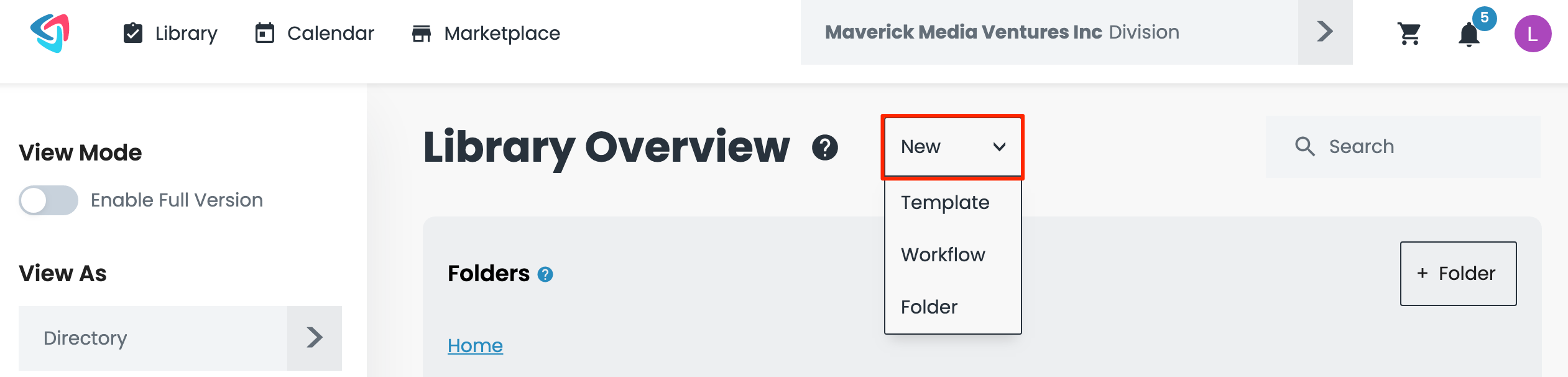
Assuming you haven’t purchased any pre-made Templates, your main Library page will look like this:
Library Flowster

Notice there is a drop down menu at the top where you can select New Template, New Workflow, or New Folder.

Marketplace

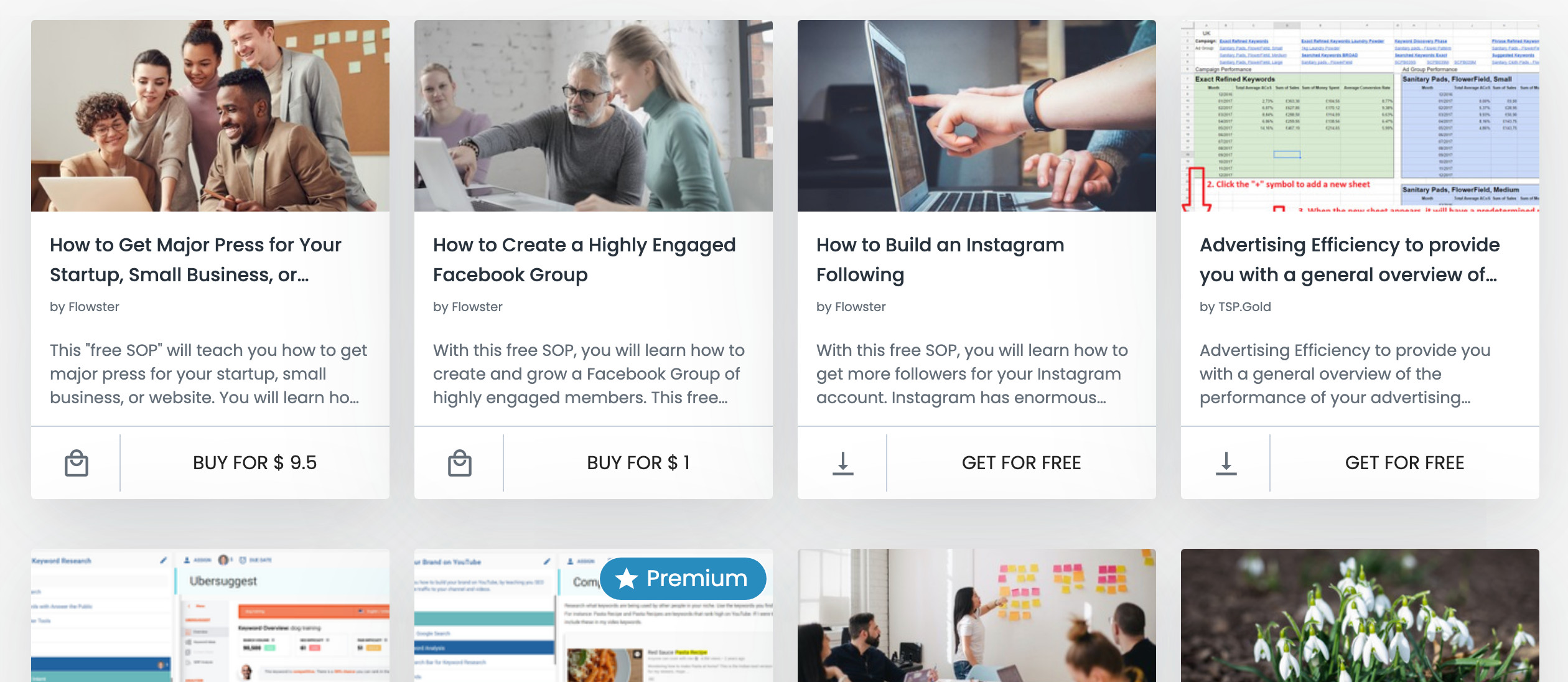
The Marketplace icon on the top menu bar will open up the Marketplace and display all the free SOP templates that you can add to your cart and import into your account quickly:
SOP Marketplace Flowster

You may want to do this first so you can see some examples of how a SOP template is typically designed.

Folders

If you prefer to keep things more organized, we recommend you start creating folders first and then fill them with Templates as you create them.

In most organizations, you could have Folders for things like Marketing, Sales, Inventory Management, Client Onboarding, etc…

You can have as many as you like and call them whatever you want. The only purpose folders serve is to help you keep your Templates organized.

Templates

Now that you’ve created a few Folders, it’s time to get started creating your first Standard Operating Procedure, which we call a Template.

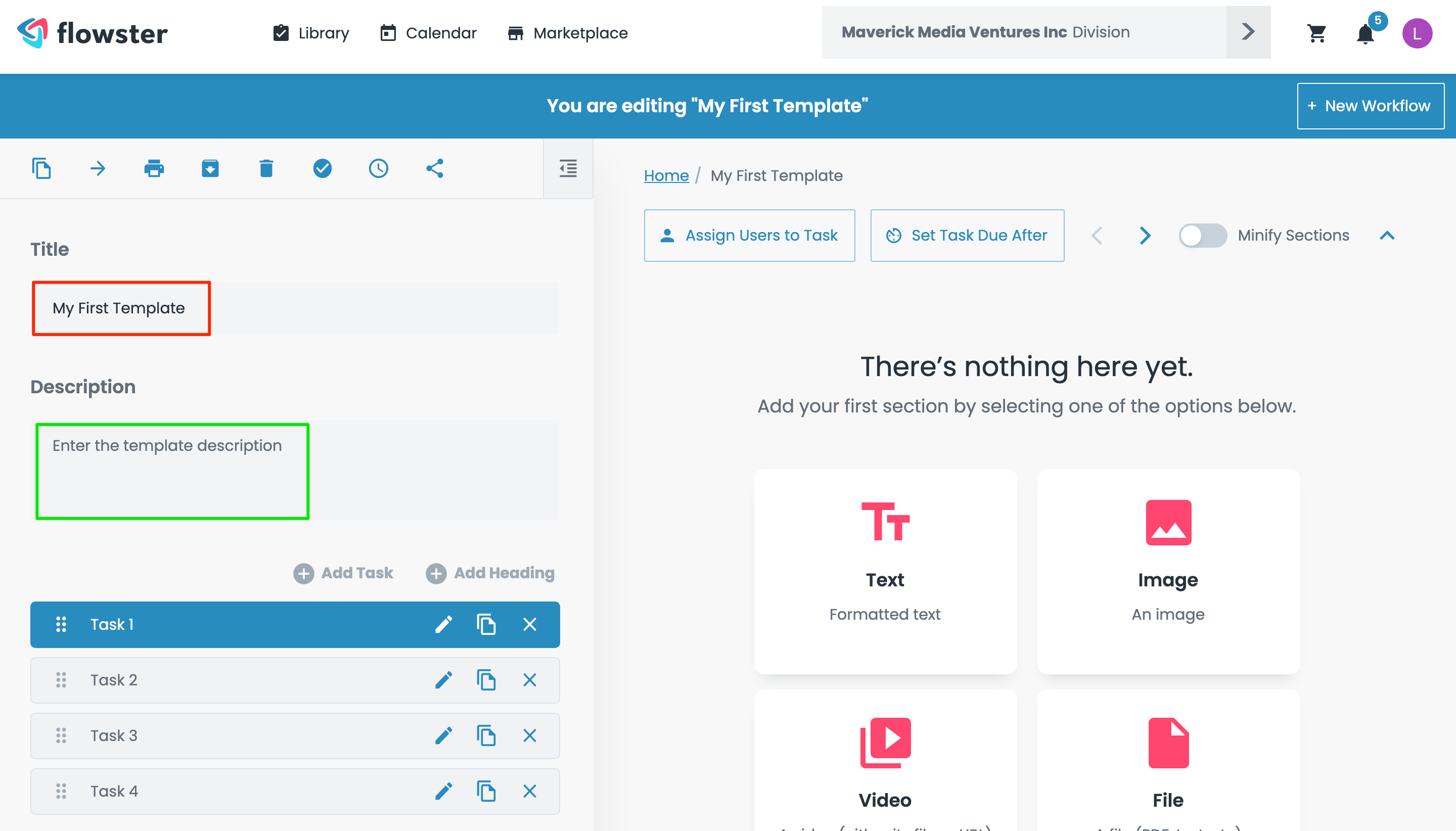
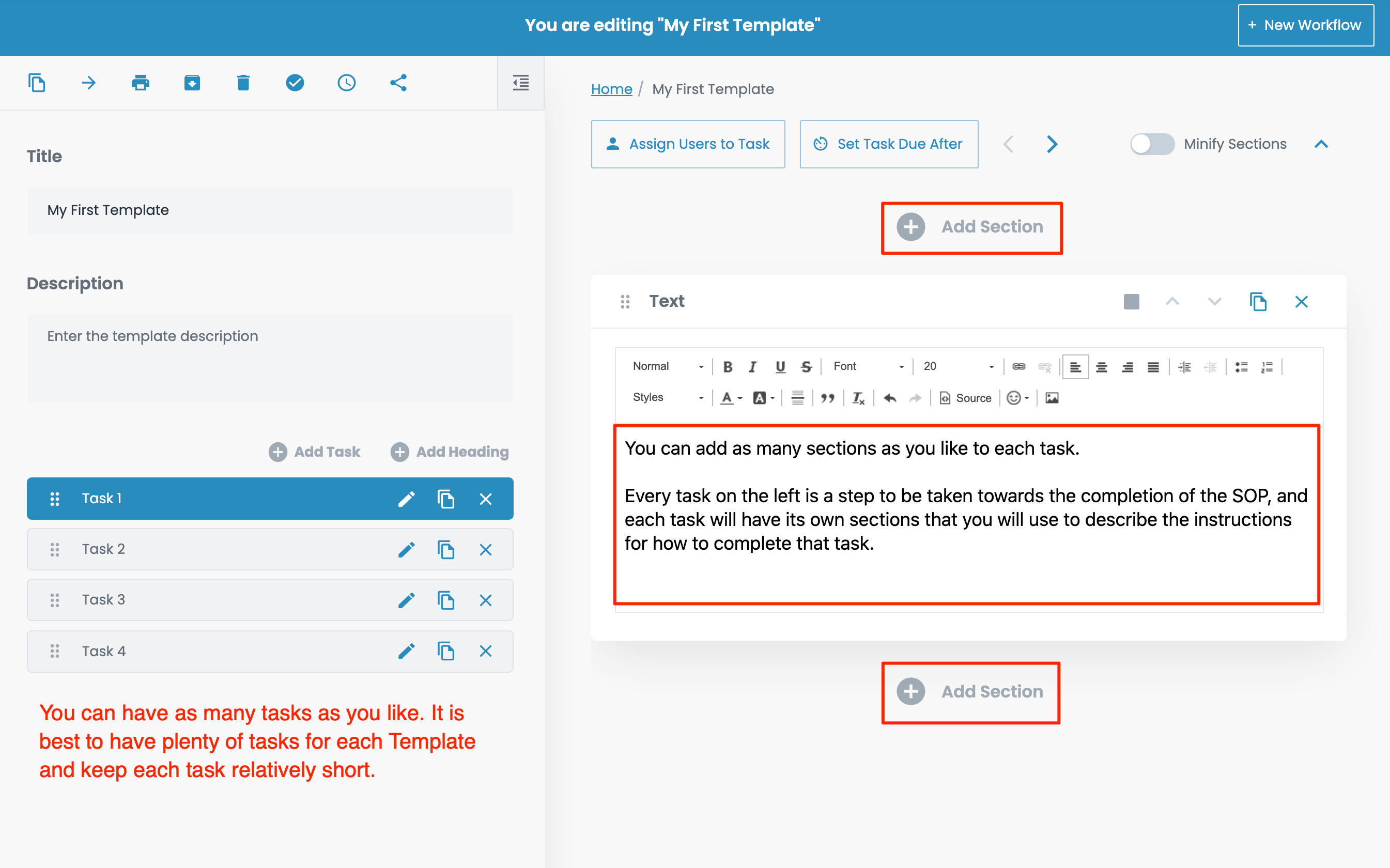
The first thing you’ll need to do is give the Template a name. You can call it anything you want and you can change the name anytime you like. I suggest you give it a descriptive name. As you can see in the image below, I named mine “My First Template” (shown in RED). In reality, you are going to want to choose a much more descriptive name like Onboard a New Client or Issue a Purchase Order or Onboard a New Employee, etc…

I also strongly recommend that you take a moment to write a description. This is where you will use a few sentences to describe when this Template should be used, what it is for, and the type of person that it would most likely be assigned to. (Shown in GREEN).
My First Template Template Flowster

Once you’ve given your SOP Template a name and a description, it’s time to start adding the step-by-step instructions. To create these instructions, you are going to use Tasks. Within each Task, there will be one or more Sections.
My First Template Template Flowster 1

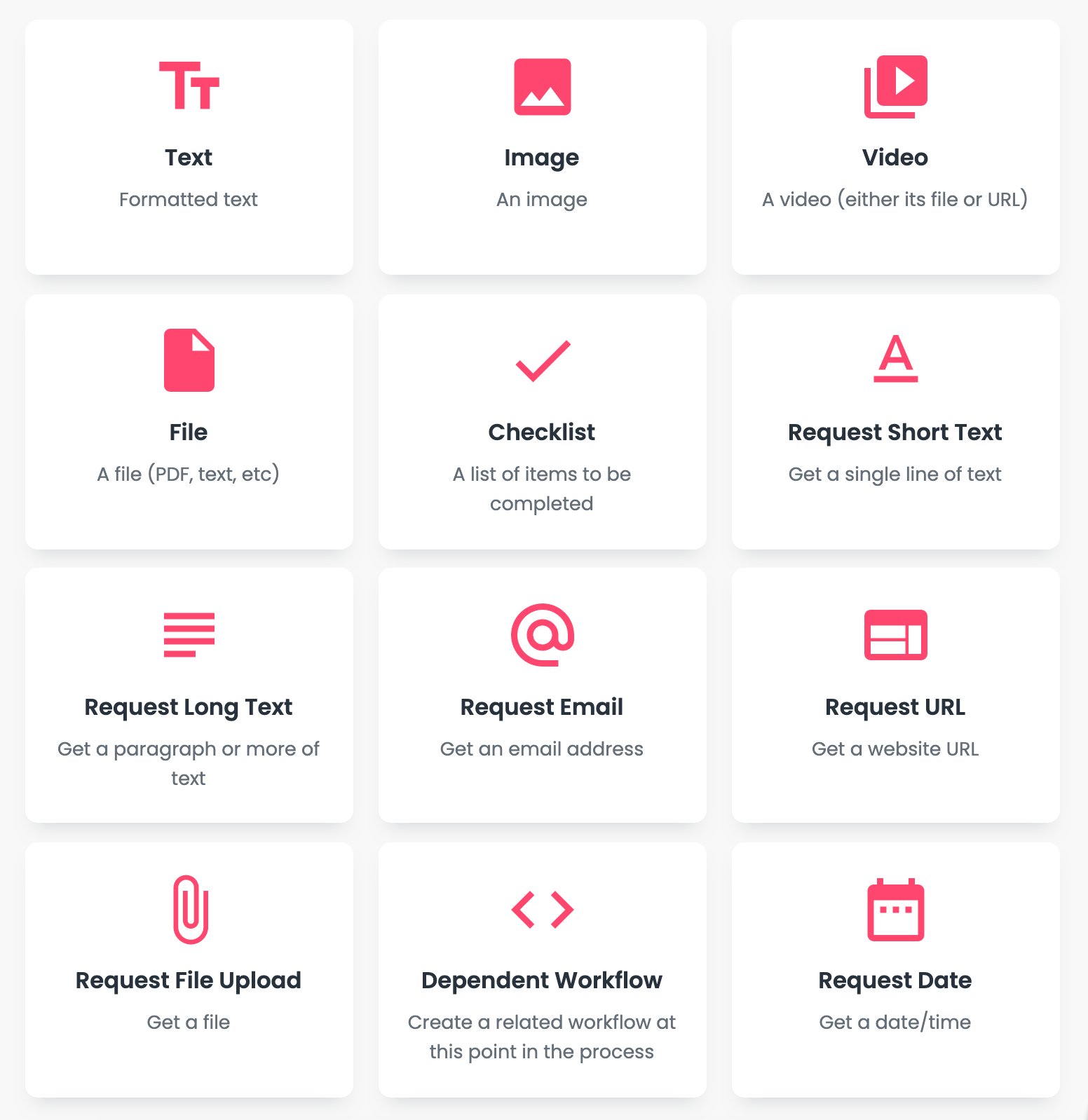
As you can see in the screenshot below, you will be prompted to add a Section when you are editing a task that does not yet have any Sections. Once you have added your first section, Add Section buttons will appear.
My First Template Template Flowster 2

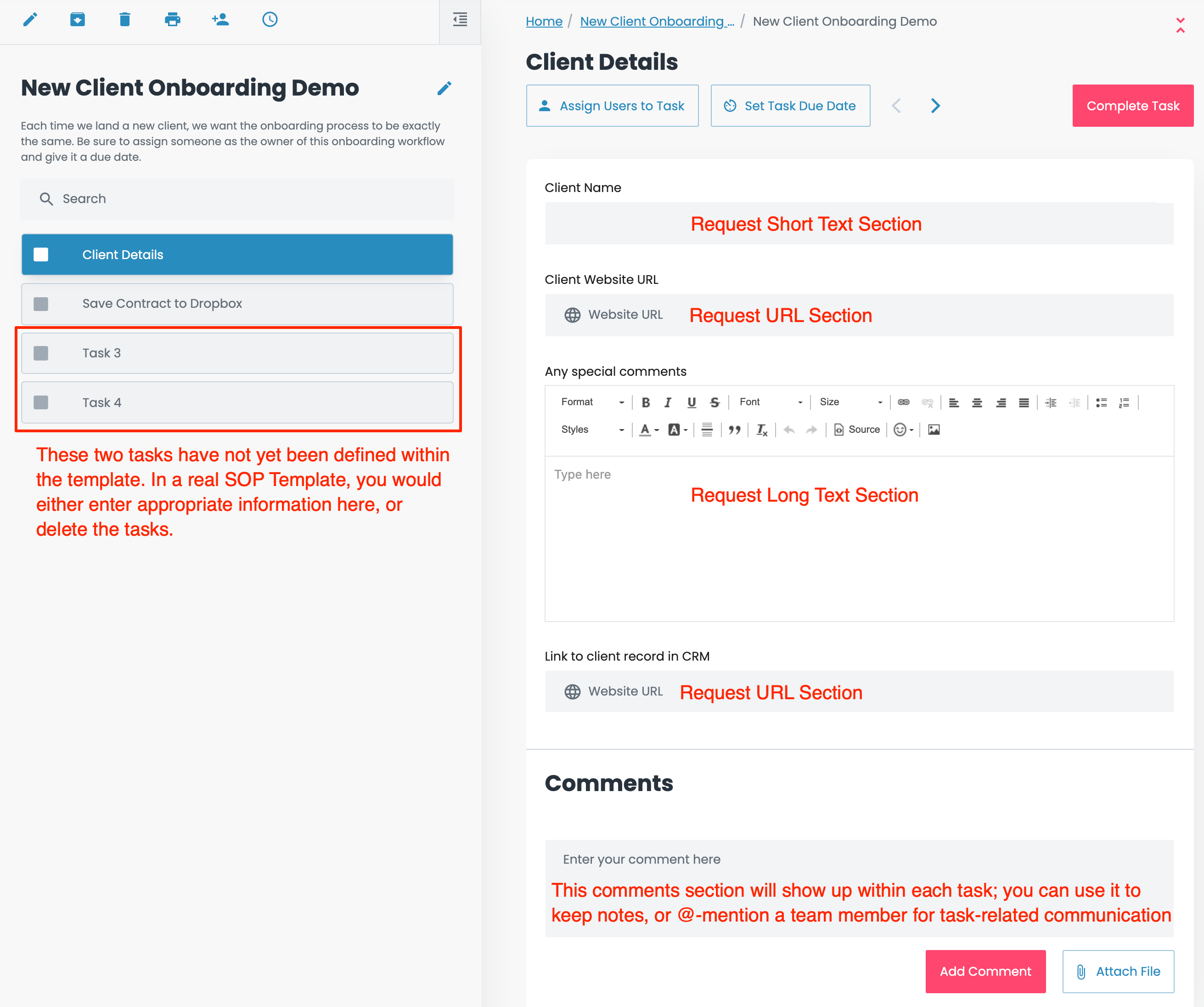
You may have noticed that 6 of the section types contain the word Request in their name. That’s because you would use these when you want the person doing the work to input some type of data into the Workflow as they are completing it.

In the image below is a screenshot of the Workflow of our demo SOP Template. As you can see below, in the first task (Client Details), when we designed the SOP Template, we made use of several input sections so that when a Workflow was run and assigned to a team member, they could input the required information.
New Client Onboarding Demo Workflow Flowster

Assigning Workflows

Once you have your first SOP Template completed, you are ready to use it to create your first Workflow so you can actually begin to delegate some of your work to other people!

Congratulations! You’ve just taken your first step to working ON your business instead of IN it – and life will never be the same again, I can assure you.

To create a Workflow from a SOP Template, all you need to do is click the + New Workflow button.New Client Onboarding Demo Template Flowster
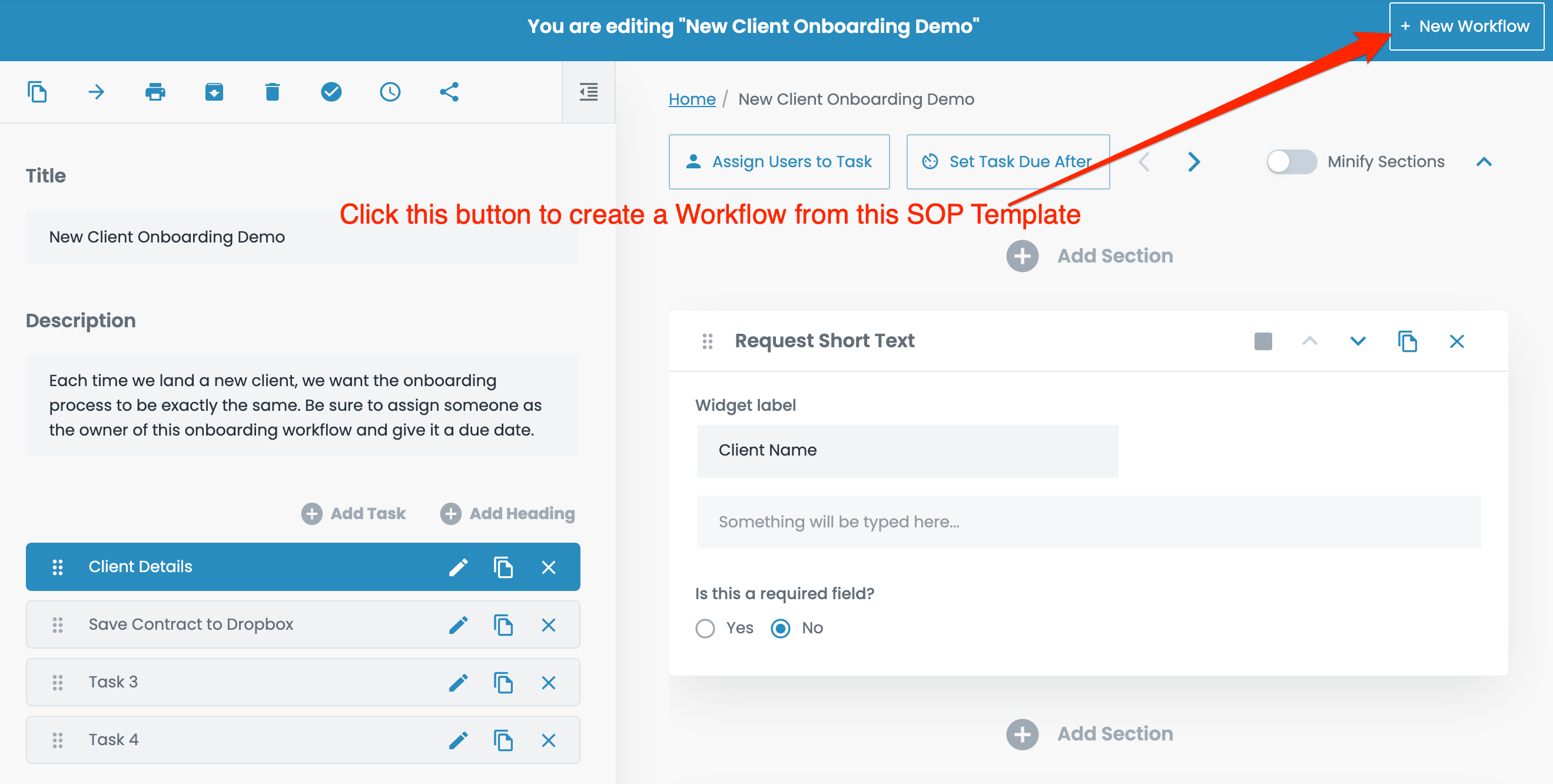
Once that button is clicked, you will be asked to give the Workflow a name, and once you do that, you’ll be taken to the Workflow itself.

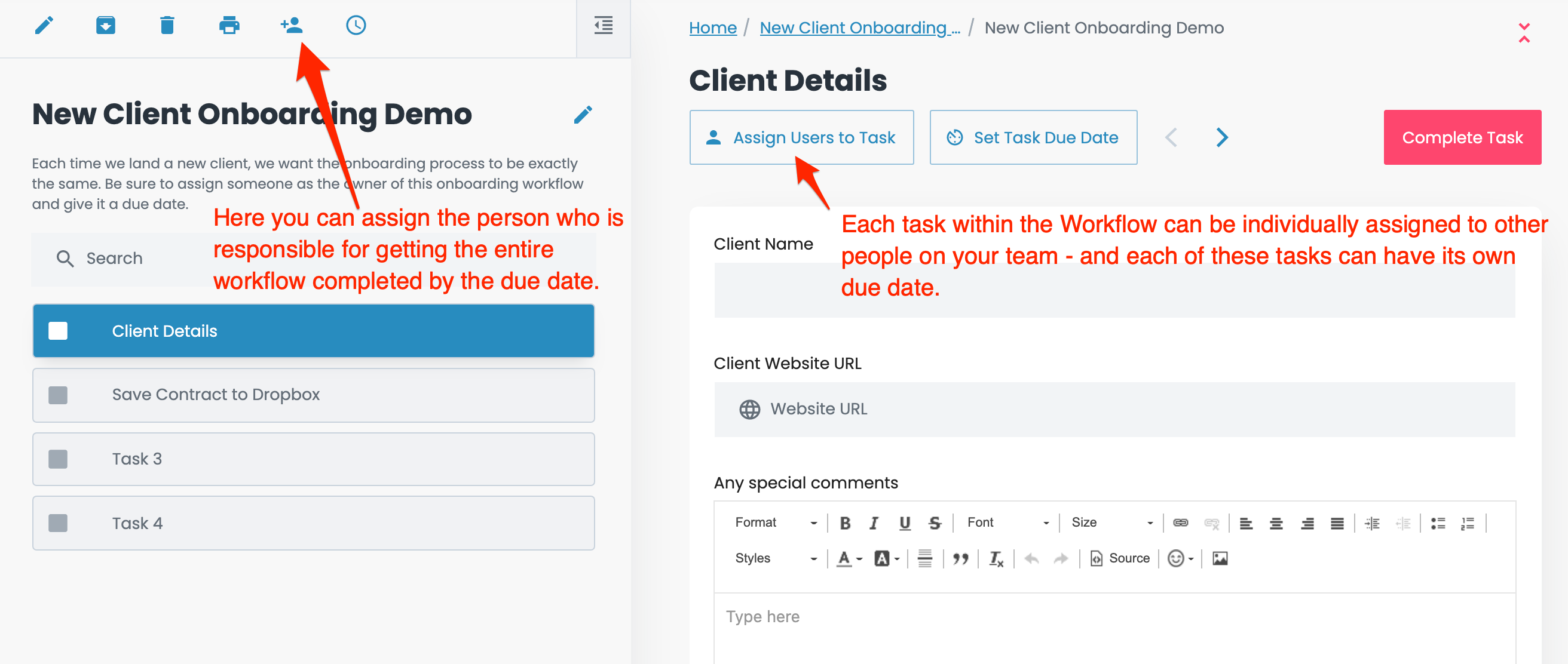
At this point, it’s a very good idea to select the person on your team who’s going to be responsible for ensuring the workflow is completed by the due date (you can assign it to multiple people too, if you like).

Once you’ve assigned the person who’s in charge of the entire Workflow, you or that person (as long as they are a Member and not a Guest) can assign individual Tasks to other people on your team – and each of these Tasks can have its own separate due date.
New Client Onboarding Demo Workflow Flowster 1

So, in reality, if you have a large SOP Template that is made up of 10 or 20 Tasks, you can easily delegate each of the Tasks to other people on your team with as many different due dates as you like. Better yet, if the same people will always be responsible for completing the same tasks, you can assign those tasks to them from the Template level, and each time a Workflow is run, they will automatically have that task assigned to them.

For each person who is assigned a Workflow or a Task on a Workflow, they’ll receive an email and in-app notification letting them know that they have work to complete, and by when it needs to be completed.

Voila – now you have project management capabilities right within Flowster!

Administering Your Account

We created Flowster to serve the needs of organizations that are staffed by as little as one person, all the way up to hundreds or even thousands of people. There are three types of user accounts:

  1. Admins
  2. Members
  3. Guests

Admins are the folks that can create and delete other users, assign roles, and even create new Divisions. (You would only need multiple Divisions if you are running multiple, separate businesses). They can also do everything that Members can do.

Members are the folks that can create, edit, and delete Templates. They’re also the ones that can create a Workflow from a Template, give it a due date, and assign it to anyone else on the team.

To get your work done, you can have as many Guest accounts as you need. Guest accounts are free and the only thing that a Guest user can do is take an assigned Workflow and complete it. In our organizations, all of our virtual assistants (VA’s) use Guest accounts.

That’s all you need to know to use Flowster

I sure hope you’ve found this introductory guide helpful!

If you would like more information on any of the topics covered here, feel free to contact us.

Now, about those “best practices” for SOP Template creation …

If you’re committed to transitioning from working IN your business to working ON your business, a big part of making that happen is to create an SOP Template for literally every repetitive process that exists in your company.

While this may sound like a lot of work, the good news is that you don’t have to create them all today! Instead, I recommend that the next time you are about to do something that gets done repeatedly in your company, you take some extra time and document the process in Flowster as you are actually doing the process!

That way, you will easily be able to delegate that process to someone else on your team next time.

To help you with that, here’s a terrific article on some best practices for creating SOP Templates Within Flowster.

3827 S Carson St, 505-25 Unit #3040
Carson City, NV 89701, USA

© Copyright – Flowster, LLC

Linkedin Twitter Youtube Facebook Instagram
  • About
  • Careers
  • Blog
  • Contact Us
  • About
  • Careers
  • Blog
  • Contact Us
1% For The Planet

RESOURCES

  • Help Docs
  • Integrations
  • Affiliates
  • Virtual Assistant Placement Program
  • Training Videos
  • Partner Webinars
  • Content Partner Program

LEGAL

  • Privacy Policy
  • Terms of Service

Stay up to date on the latest from Flowster

We use cookies on our website to give you the most relevant experience by remembering your preferences and repeat visits. By clicking “Accept”, you consent to the use of ALL the cookies.
Do not sell my personal information.
Cookie settingsACCEPT
Manage consent

Privacy Overview

This website uses cookies to improve your experience while you navigate through the website. Out of these, the cookies that are categorized as necessary are stored on your browser as they are essential for the working of basic functionalities of the website. We also use third-party cookies that help us analyze and understand how you use this website. These cookies will be stored in your browser only with your consent. You also have the option to opt-out of these cookies. But opting out of some of these cookies may affect your browsing experience.
Necessary
Always Enabled
Necessary cookies are absolutely essential for the website to function properly. This category only includes cookies that ensures basic functionalities and security features of the website. These cookies do not store any personal information.
Functional
Functional cookies help to perform certain functionalities like sharing the content of the website on social media platforms, collect feedbacks, and other third-party features.
CookieDurationDescription
akavpau_ppsdsessionThis cookie is provided by Paypal. The cookie is used in context with transactions on the website.
nsidsessionThis cookie is set by the provider PayPal. This cookie is used to enable the PayPal payment service in the website.
tsrce3 daysThis cookie is set by the provider PayPal. This cookie is used to enable the PayPal payment service in the website.
x-pp-ssessionThis cookie is set by the provider PayPal. This cookie is used to process payments from the site.
Performance
Performance cookies are used to understand and analyze the key performance indexes of the website which helps in delivering a better user experience for the visitors.
CookieDurationDescription
ac_enable_tracking1 monthThis cookie is set by the Active Campaign. This cookie is used to keep track of the site usage.
YSCsessionThis cookies is set by Youtube and is used to track the views of embedded videos.
Analytics
Analytical cookies are used to understand how visitors interact with the website. These cookies help provide information on metrics the number of visitors, bounce rate, traffic source, etc.
CookieDurationDescription
_ga2 yearsThis cookie is installed by Google Analytics. The cookie is used to calculate visitor, session, campaign data and keep track of site usage for the site's analytics report. The cookies store information anonymously and assign a randomly generated number to identify unique visitors.
_gcl_au3 monthsThis cookie is used by Google Analytics to understand user interaction with the website.
_gid1 dayThis cookie is installed by Google Analytics. The cookie is used to store information of how visitors use a website and helps in creating an analytics report of how the website is doing. The data collected including the number visitors, the source where they have come from, and the pages visted in an anonymous form.
_hjFirstSeen30 minutesThis is set by Hotjar to identify a new user’s first session. It stores a true/false value, indicating whether this was the first time Hotjar saw this user. It is used by Recording filters to identify new user sessions.
_omappvp11 yearsThe cookie is set to identify new vs returning users. The cookie is used in conjunction with _omappvs cookie to determine whether a user is new or returning.
_omappvs20 minutesThe cookie is used to in conjunction with the _omappvp cookies. If the cookies are set, the user is a returning user. If neither of the cookies are set, the user is a new user.
_uetsid1 dayThis cookies are used to collect analytical information about how visitors use the website. This information is used to compile report and improve site.
Advertisement
Advertisement cookies are used to provide visitors with relevant ads and marketing campaigns. These cookies track visitors across websites and collect information to provide customized ads.
CookieDurationDescription
_fbp3 monthsThis cookie is set by Facebook to deliver advertisement when they are on Facebook or a digital platform powered by Facebook advertising after visiting this website.
fr3 monthsThe cookie is set by Facebook to show relevant advertisments to the users and measure and improve the advertisements. The cookie also tracks the behavior of the user across the web on sites that have Facebook pixel or Facebook social plugin.
IDE1 year 24 daysUsed by Google DoubleClick and stores information about how the user uses the website and any other advertisement before visiting the website. This is used to present users with ads that are relevant to them according to the user profile.
MUID1 year 24 daysUsed by Microsoft as a unique identifier. The cookie is set by embedded Microsoft scripts. The purpose of this cookie is to synchronize the ID across many different Microsoft domains to enable user tracking.
test_cookie15 minutesThis cookie is set by doubleclick.net. The purpose of the cookie is to determine if the user's browser supports cookies.
uidThis cookie is used to measure the number and behavior of the visitors to the website anonymously. The data includes the number of visits, average duration of the visit on the website, pages visited, etc. for the purpose of better understanding user preferences for targeted advertisments.
VISITOR_INFO1_LIVE5 months 27 daysThis cookie is set by Youtube. Used to track the information of the embedded YouTube videos on a website.
Others
Other uncategorized cookies are those that are being analyzed and have not been classified into a category as yet.
CookieDurationDescription
_fw_crm_v1 yearNo description
_gat_UA-124464104-11 minuteNo description
_gat_UA-182261587-11 minuteNo description
_hjAbsoluteSessionInProgress30 minutesNo description
_hjid1 yearThis cookie is set by Hotjar. This cookie is set when the customer first lands on a page with the Hotjar script. It is used to persist the random user ID, unique to that site on the browser. This ensures that behavior in subsequent visits to the same site will be attributed to the same user ID.
_hjIncludedInPageviewSample2 minutesNo description
_hjIncludedInSessionSample2 minutesNo description
_hjTLDTestsessionNo description
_lfa2 yearsThis cookie is set by the provider Leadfeeder. This cookie is used for identifying the IP address of devices visiting the website. The cookie collects information such as IP addresses, time spent on website and page requests for the visits.This collected information is used for retargeting of multiple users routing from the same IP address.
_seg_uid1 yearNo description
_seg_uid_35361 yearNo description
_seg_visitor_35361 yearNo description
_uetvid16 days 6 hoursNo description
CONSENT16 years 8 months 2 days 6 hoursNo description
cookielawinfo-checkbox-functional1 yearThe cookie is set by GDPR cookie consent to record the user consent for the cookies in the category "Functional".
cookielawinfo-checkbox-others1 yearNo description
DO-LBNo description
enforce_policy1 yearNo description
hyperise_session2 hoursNo description
l7_az30 minutesNo description
LANG9 hoursNo description
prism_7995608311 monthNo description
RUL1 yearNo description
whr_nov1 yearNo description
x-cdnNo description
SAVE & ACCEPT
Powered by CookieYes Logo
  • Next Steps
    • What is Flowster?
    • Process Management vs Project Management
    • Why Flowster vs MS or Google Docs?
    • Flowster vs Flowcharts
    • Customer Stories
    • Browse our Template Marketplace
    • 3 Minute Demo
    • Visit our Blog
  • Products
    • Capture Chrome Extension
    • Flowster Unlimited
    • Flowster Connect: LinkedIn Automation
    • Flowster Agency Success Tactics (FAST) Playbook
    • Amazon Seller Playbook
  • Marketplace
  • Pricing
Login
Get started for free