


Slide work is a silent time thief. Professionals lose about seven hours every week just nudging text boxes or chasing the right logo, according to a MirrorReview analysis. Picture that 1 a.m. scramble before a big meeting: you’re shifting shapes, praying the charts are still correct, and wondering why a deck takes longer than the analysis behind it.
Here’s the good news, you can win those hours back. A new class of AI-powered add-ins lives inside PowerPoint, drafts first-pass slides in minutes, keeps branding airtight, and refreshes charts the moment data shifts.
In this guide we’ll show you the four add-ins worth testing and the criteria that proved they deliver real, measurable time savings.
How we picked the winners
We started with a long list of over 60 PowerPoint add-ins and AI slide generators. Most looked slick on landing pages, yet only a handful truly saved time once installed.
To separate signal from noise, we asked six tough questions.
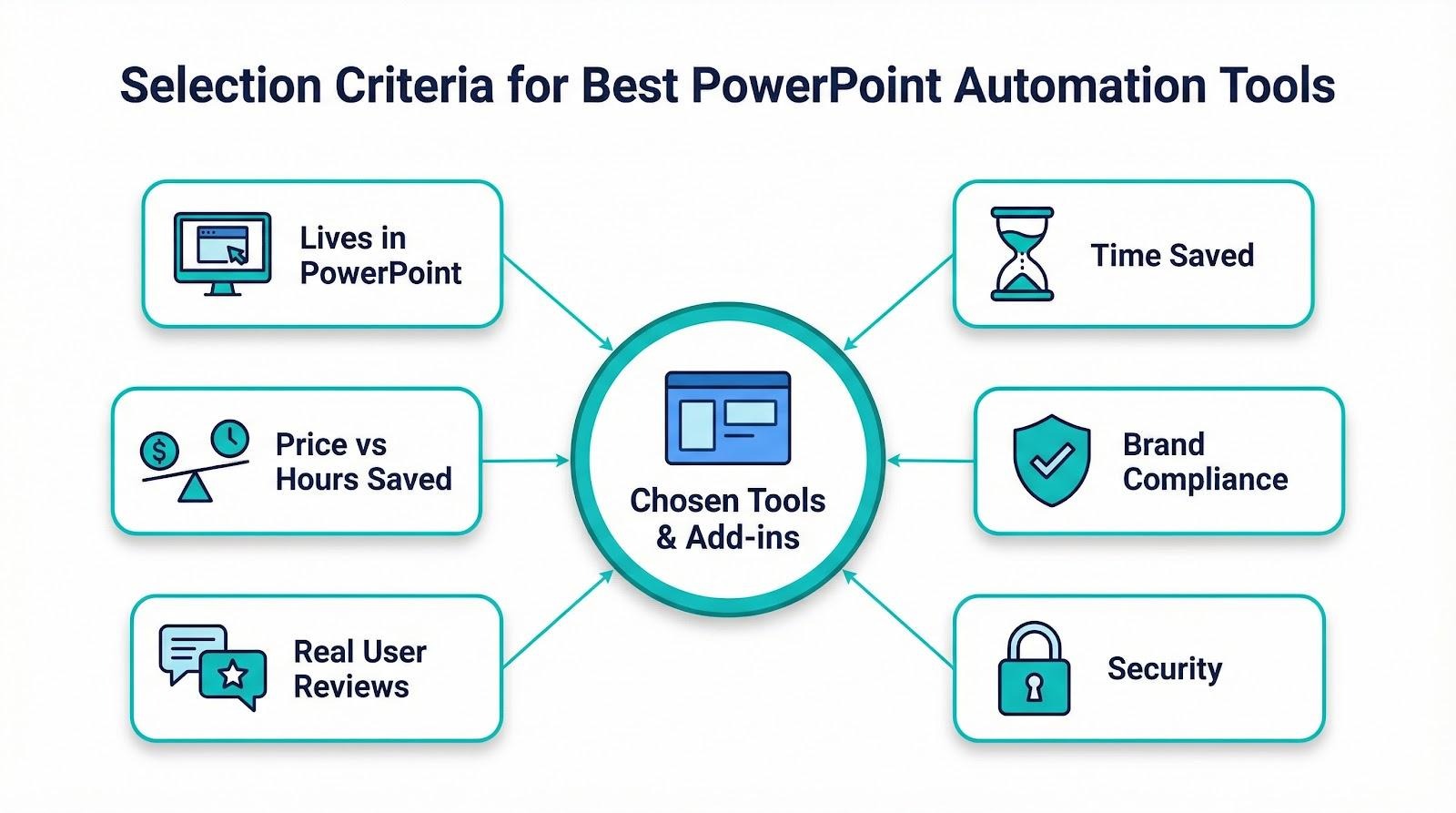
- Does the tool live inside PowerPoint so you never have to switch apps?
- How many minutes does it shave off a typical task, based on user tests or case studies?
- Will it respect the company template and keep every slide on brand, no excuses?
- Is enterprise security in place, for example SOC 2 or Microsoft 365 tenant controls?
- Do real users praise it, in ratings or reviews, rather than marketing copy alone?
- Is the price in line with the hours it gives back to your calendar?
Any product that failed even one check left the list. What remained are four add-ins that balance speed, reliability, and professional polish.
That’s the bar we set. In the next sections you’ll see why each finalist earned its spot and how it solves a specific presentation pain point.
Plus AI: your AI co-author inside PowerPoint
Imagine opening PowerPoint, typing a single prompt, and watching a fully branded deck appear in under a minute, a workflow the Plus AI add-in demo shows in real time. That’s Plus AI in action. The add-in sits quietly in your ribbon, ready to draft, rewrite, or tidy slides without pushing you into another web app. As one reviewer notes, Plus AI “lives directly inside PowerPoint and Google Slides,” so there is zero context-switching friction.

Speed meets control. Feed Plus AI a short outline or even a Word document, and it builds a multi-slide presentation where every textbox, shape, and chart remains a native PowerPoint object. You can click, edit, or animate anything as usual. The tool also respects your slide master, so fonts, colors, and gridlines stay on brand from the first draft.
Need polish on an existing deck? Highlight clunky bullets, press “Rewrite,” and Plus AI suggests sharper phrasing. Tap “Beautify,” and it realigns elements so nothing looks off-kilter. Because all of this happens in the same window, you stay in flow.
Pricing starts at $10 per user each month, with a seven-day free trial. One reclaimed billable hour often covers the cost.
Where does Plus AI excel? Fast-moving teams that live in decks (consultants, marketers, sales pros) who cannot afford a blank-page stall. It gets you 70 percent of the way to finished, leaving the final storytelling to you, where human judgment still wins.
Bottom line: Plus AI turns PowerPoint into a collaborative canvas shared between you and GPT-4. Less grunt work, more ideas on the slide. If reclaiming hours sounds good, start your free trial and measure the lift on your next deadline.
Microsoft 365 Copilot: AI on the native menu bar
If Plus AI feels like adding a sharp colleague to PowerPoint, Copilot is more like finding out Microsoft hired that colleague and handed over a key card.
Copilot now appears as a ribbon button for enterprise Microsoft 365 customers. Click it, type “Draft a 10-slide pitch from our Q3 roadmap,” and within seconds a scaffolded deck appears with titles, bullets, and suggested images. Because everything stays inside your tenant, files never leave Microsoft’s cloud.
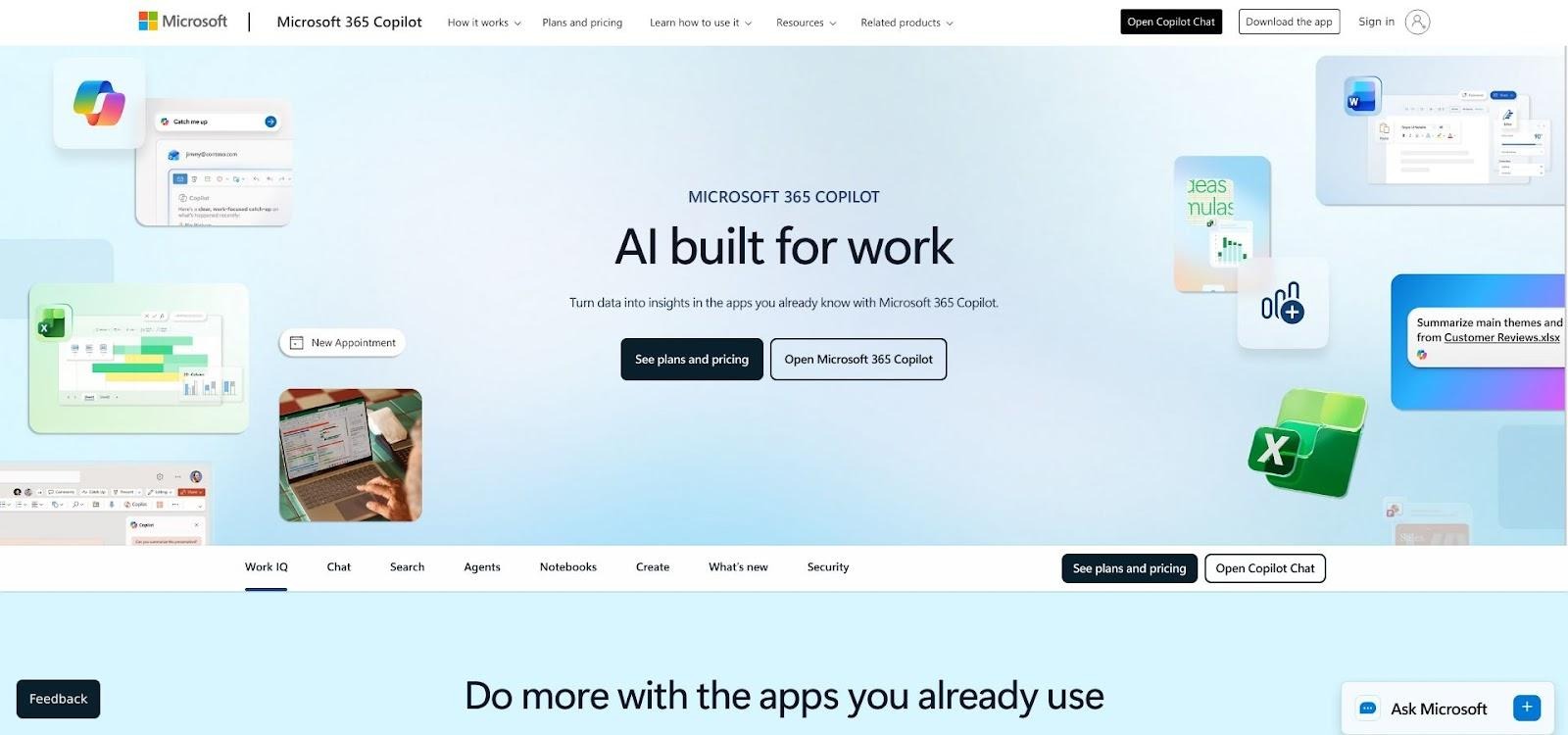
Convenience is the headline. Ask follow-up requests like “Simplify slide 3” or “Replace this list with an icon grid,” and Copilot edits live objects on screen. It also pulls facts from SharePoint, Teams chats, or that Word doc your teammate finished an hour ago.
The catch is cost. Copilot runs $30 per user each month on top of an E3 or E5 license, making it the highest-priced option in this roundup, according to software consultancy Softcircles. For many small teams that’s a deal breaker, which is why we led with Plus AI earlier.
Early adopters note that Copilot’s wording and layouts can feel boilerplate. You still need a human pass to add personality and tighten the story. Treat it as a rapid first draft, not a finished deck.
Security is Copilot’s trump card. Because it inherits existing Microsoft 365 permissions, IT teams rarely object. If your company already lives in Outlook, Teams, and OneDrive, turning on Copilot feels like discovering a hidden feature rather than installing new software.
Bottom line: Copilot is the quickest path to AI help if your organization can handle the premium. For everyone else, the free trial of Plus AI or another add-in delivers similar drafting speed at a friendlier price.
Templafy: the brand guardian that never sleeps
AI generators draft slides, but someone still has to check every font, color, and logo. That someone is often you, armed with color pickers and brand guides, burning an afternoon on details no client will notice.
Templafy turns that chore into a safety net. The add-in plants a searchable library of approved templates, logos, photos, and boilerplate text directly inside PowerPoint. Start a new presentation and you are already using the current master. Need a team-bio slide? Insert the sanctioned layout in two clicks instead of rummaging through old decks.
Brand updates become painless. Swap a logo in Templafy’s admin console and the next time anyone opens a deck the new asset appears automatically. Legal lines, footer disclaimers, and color palettes sync the same way. Design teams stop policing slides because the software handles enforcement behind the scenes.
Large organizations credit the tool with saving countless review cycles. Marketing no longer fields “Is this the right shade of blue?” emails. Sales teams stop pasting outdated charts. Compliance officers sleep easier knowing every disclaimer is current.
Templafy is an enterprise purchase, usually rolled out company-wide and priced to match. Small teams may pass, but for global firms creating hundreds of decks a month, the return is clear. Pair it with an AI generator and you get speed plus brand consistency, keeping creative and compliance teams happy.
think-cell: charting at consultant speed
Slides packed with data can impress or overwhelm. The balance tips when a chart updates the instant numbers change, and think-cell covers that moment.
Install the add-in and a dreaded waterfall chart takes minutes, not an afternoon. You type figures into a mini spreadsheet, press Insert, and a polished graphic appears in your template colors. Need to pivot the story? Drag a bar, split a segment, or switch to a Marimekko without rebuilding from scratch.
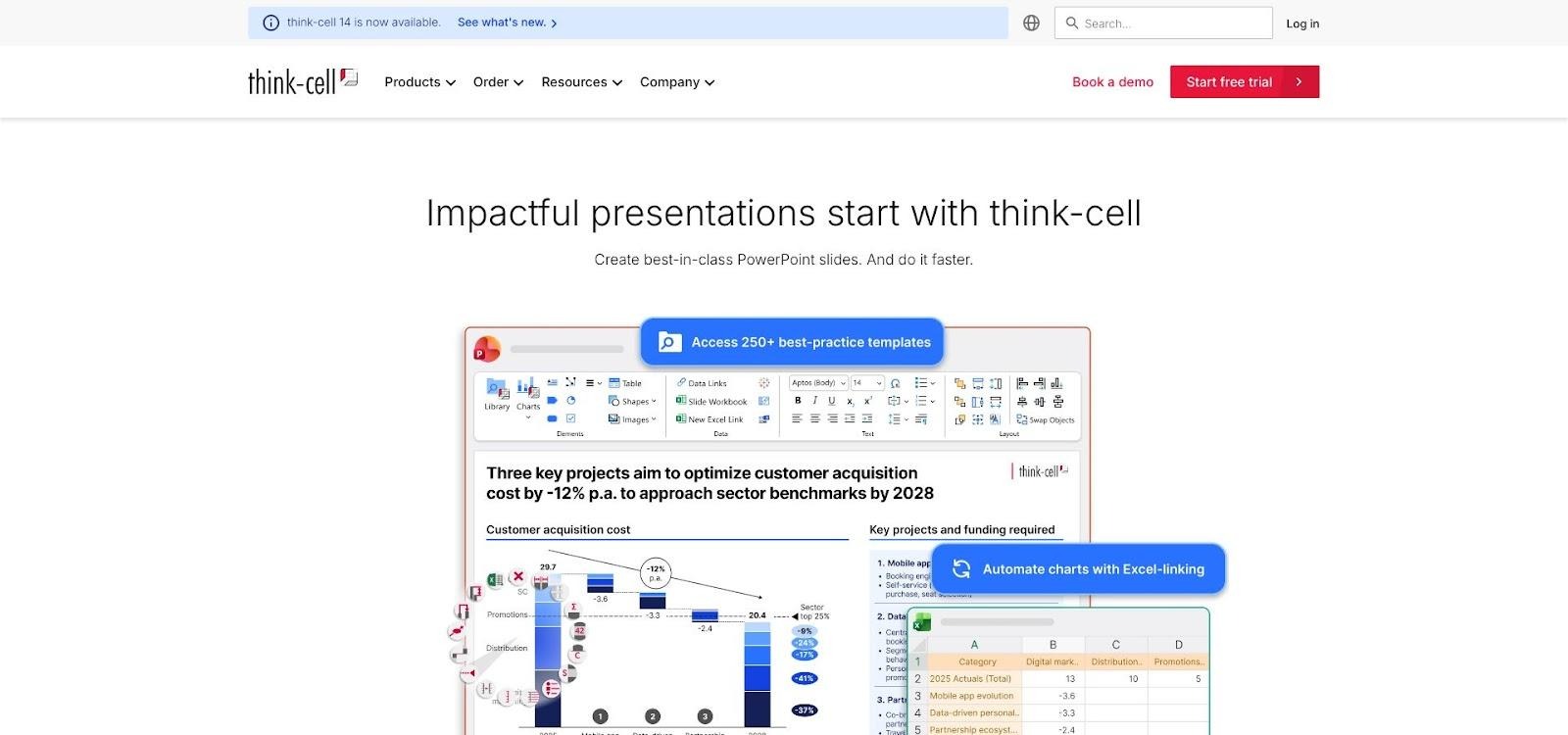
The payoff shows at 4:55 p.m. when finance sends revised revenue. Because every think-cell chart links to Excel, you paste the new numbers, click Update, and watch every slide refresh automatically. No manual nudging, no copy-paste errors, and no spike in heart rate.
Consultants and bankers rely on the tool for good reason. It handles timelines, waterfalls, and growth arrows that plain PowerPoint can only fake with tedious shapes. Yet the learning curve stays friendly; a few right-clicks reveal most of the power.
Pricing lands at $300 per user each year. On paper that seems steep until you count the hours it removes from monthly reporting. If your role lives at the intersection of Excel and PowerPoint, think-cell pays for itself before the quarter ends.
Pair it with an AI generator like Plus AI and you cover both narrative and numbers. Draft the story in minutes, then drop in charts that stay correct right up to showtime. That’s consultant speed without the consultant stress.
Side-by-side snapshot
We’ve covered a lot of ground. Here’s a quick scan you can share with your manager or use to plan a trial run.
| Add-in | AI drafting | Brand control | Data updates | Security | Price |
| Plus AI | Yes, GPT-4 inside PowerPoint | High; respects slide master | Basic chart refresh | SOC 2; lives in M365 | $10/mo |
| Copilot | Yes, GPT-4 native to Office | Medium; uses your theme | One-off charts only | Inherits 365 tenant | $30/mo |
| Templafy | None | Very high; auto-syncs assets | N/A | Enterprise SSO & admin | Enterprise quote |
| think-cell | None | Applies template colors | Live link to Excel | Local install | $300/yr |
The pattern is clear. Plus AI and Copilot speed up first drafts, while Templafy and think-cell remove the formatting and data grunt work that follows. For a closer look at how Plus AI stacks up against alternatives like Gamma and Tome, see this comparison of AI presentation tools. Pick one from each column and you’ll cover the entire presentation lifecycle..
Conclusion
You don’t have to pick a single winner. Each add-in fixes a different bottleneck, and they work side by side in the same PowerPoint window.
A common combo pairs Plus AI for first-draft slides, think-cell for live charts, and Templafy for brand checks. In practice you prompt Plus AI on Monday morning, drop in dynamic graphs with think-cell after the finance team closes numbers, and trust Templafy to swap in the new logo your brand team approved yesterday.
If your company already licenses Copilot, swap it for Plus AI and you still keep a smooth flow: Copilot drafts, think-cell updates, Templafy enforces. Stack the tools and you automate nearly every repetitive step while keeping full creative control.
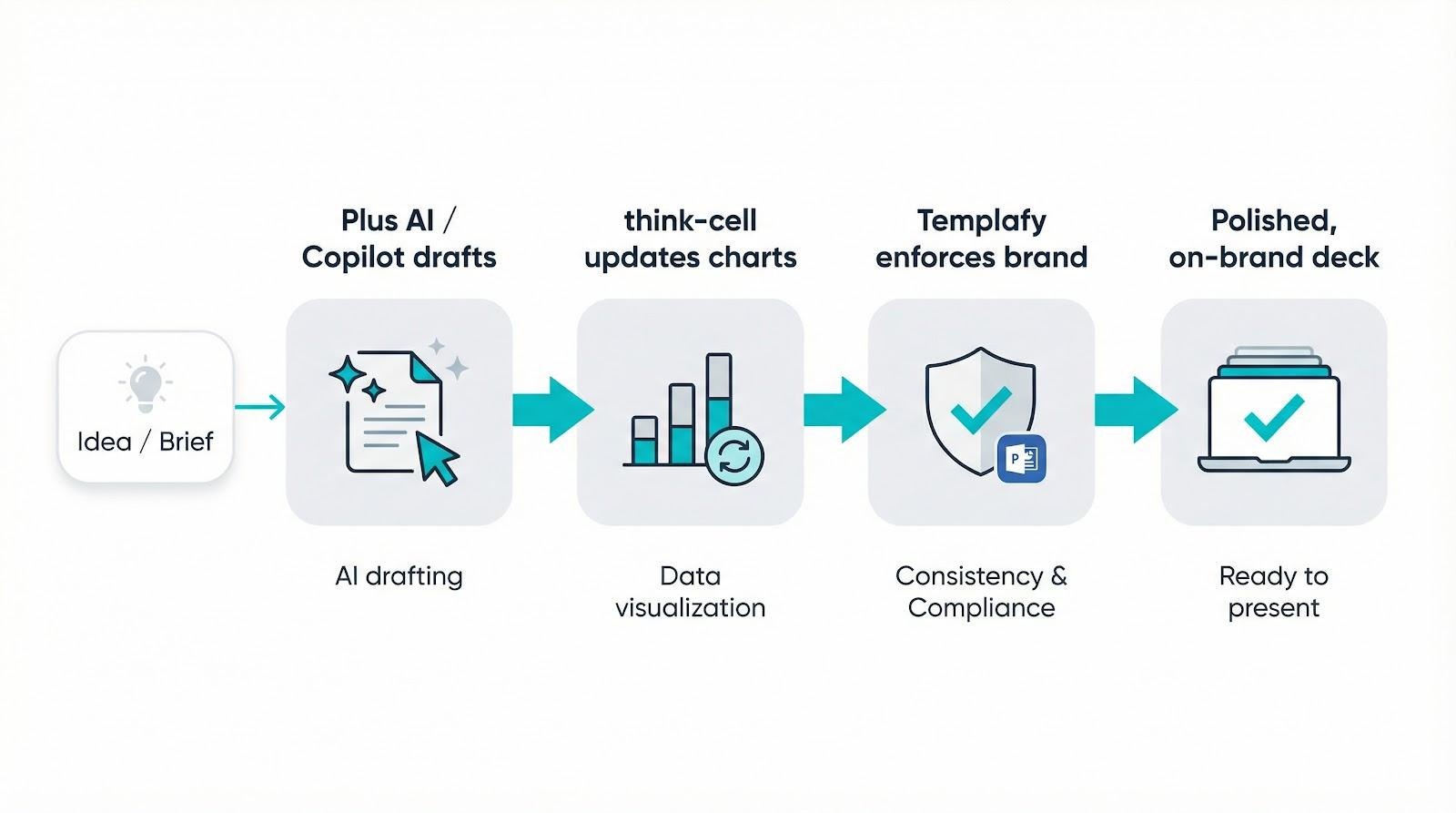
The payoff isn’t just faster decks. It’s a calmer workflow where late edits take minutes instead of hours and compliance questions vanish before they start.
FAQ
1. What are PowerPoint automation tools?
PowerPoint automation tools are add-ins or plugins that help users create, edit, and format presentations faster. They use AI, templates, or live data links to reduce repetitive tasks, enforce brand consistency, and update charts automatically.
2. Why should I use a PowerPoint automation tool?
Professionals spend up to seven hours weekly on slide formatting and adjustments. Automation tools save time, reduce errors, enforce brand standards, and streamline the entire deck creation process.
3. Which tools are considered the best for PowerPoint automation?
Based on time savings, usability, and reliability, the top four add-ins are:
- Plus AI – AI-powered first-draft slide creation inside PowerPoint.
- Microsoft 365 Copilot – Native AI drafting for enterprise Microsoft 365 users.
- Templafy – Brand management and template enforcement.
- think-cell – Advanced charting and live data updates.
4. Can these tools create slides automatically?
Yes. Tools like Plus AI and Copilot can generate multi-slide decks from prompts or documents. They draft content, apply your template, and keep slides editable for further customization.
5. Will these tools respect my company’s brand guidelines?
A: Yes. Templafy ensures all slides use approved templates, colors, fonts, and logos. Plus AI also respects slide masters for consistent branding.